Setup Procedure for Outlook Mobile App on Android

  1. Download and install “Microsoft Outlook” App from Google Play Store
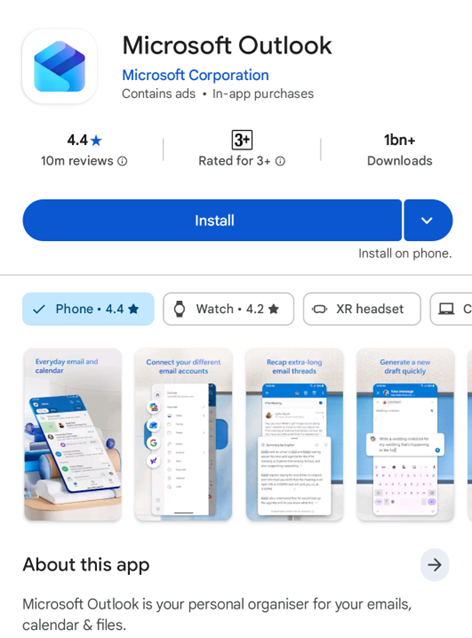
    Download and install “Microsoft Outlook” App from Google Play Store

  2. Open “Outlook” App

    Open “Outlook” App

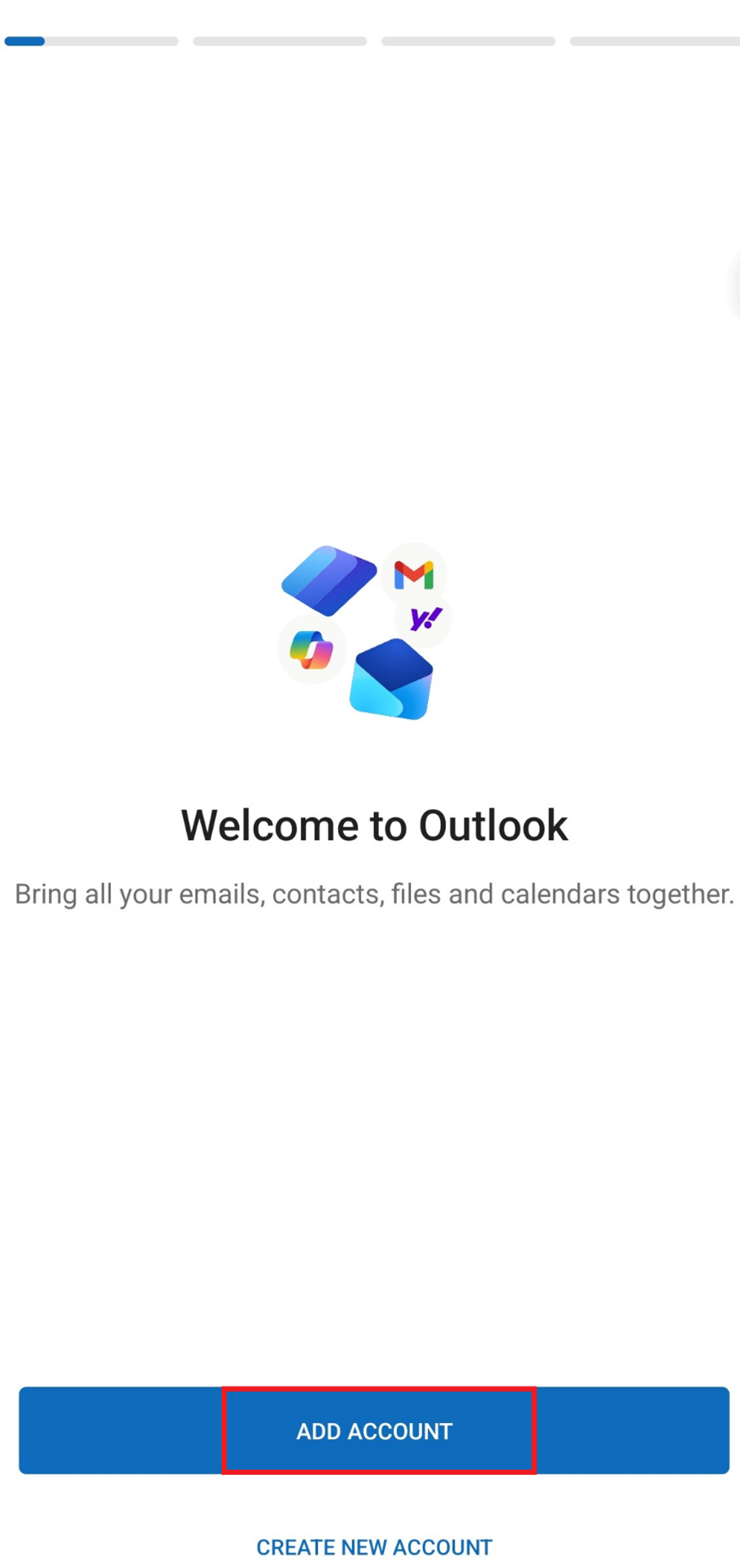
  3. Click the “ADD ACCOUNT” button

    Click the “ADD ACCOUNT” button

  4. Enter your email UID@HKU.HK and click the “Continue” button
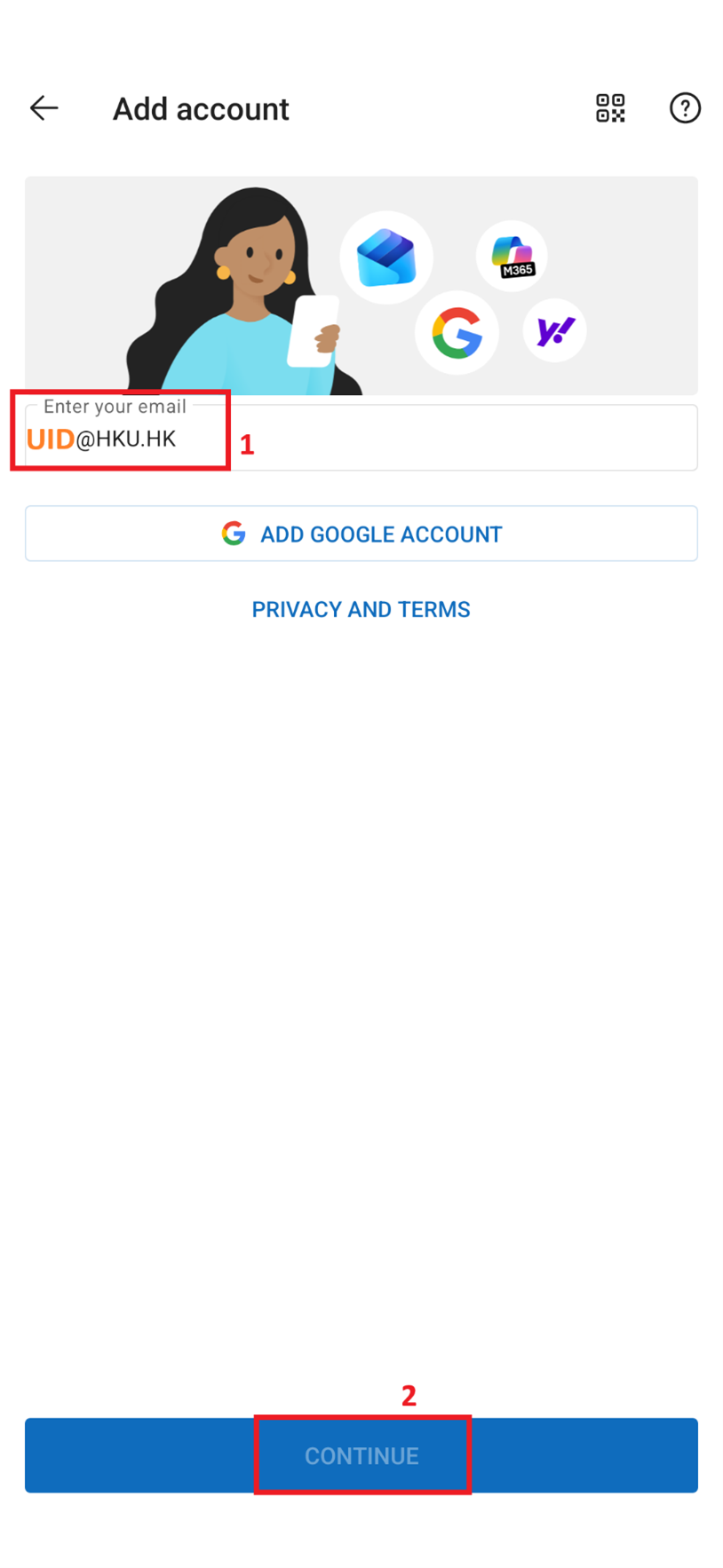
    Enter your email UID@HKU.HK and click the “Continue” button

  5. Then it will redirect to HKU Microsoft Office 365 for Staff login page; Enter PIN of your account and click the “Sign In” button
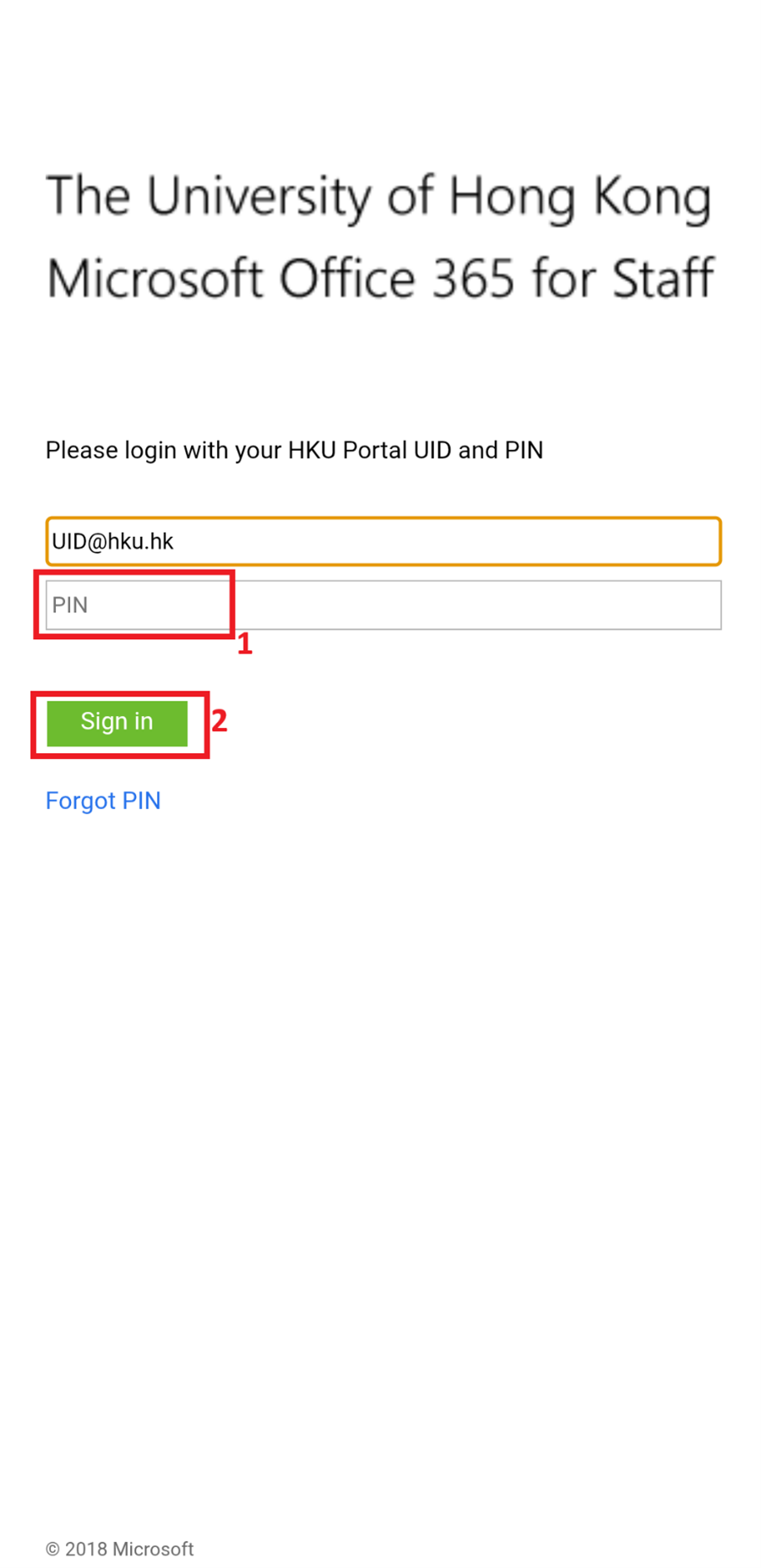
    Then it will redirect to HKU Microsoft Office 365 for Staff login page; Enter PIN of your account and click the “Sign In” button

  6. It will go through approve sign in request with MFA; it will prompt the default method which was previously set; Open your Microsoft Authenticator app and enter the number in next screen and choose “Yes

    It will go through approve sign in request with MFA; it will prompt the default method which was previously set; Open your Microsoft Authenticator app and enter the number in next screen and choose “Yes”
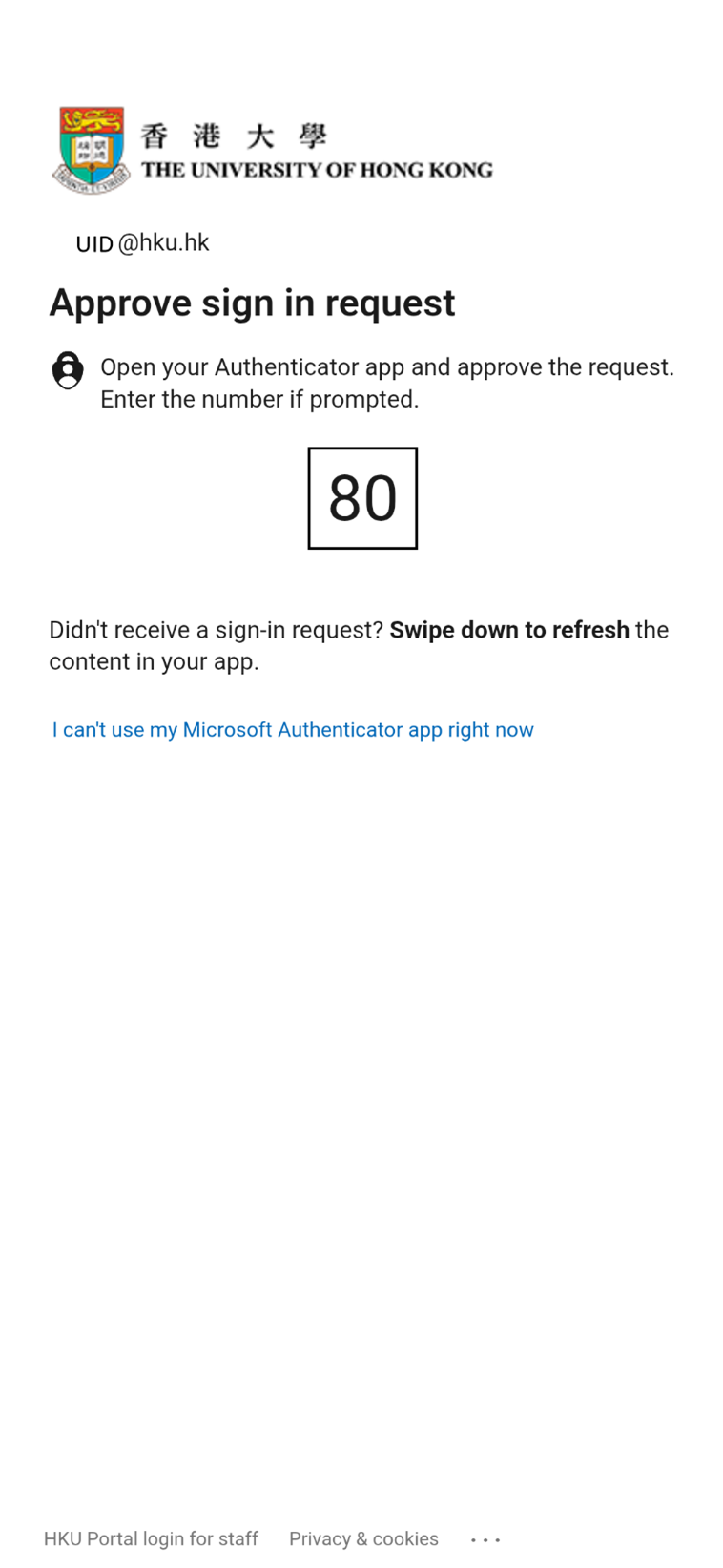
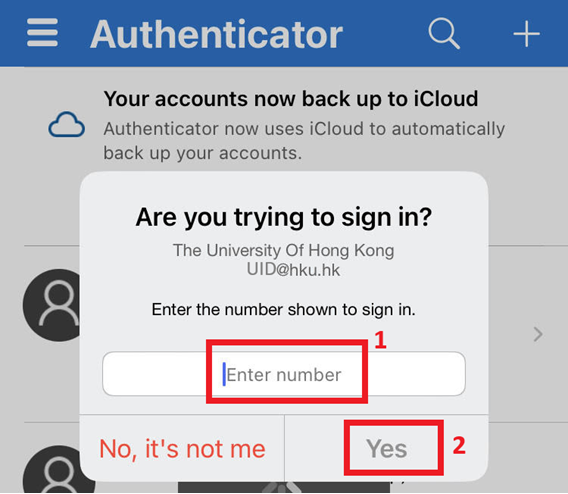
    It will go through approve sign in request with MFA; it will prompt the default method which was previously set; Open your Microsoft Authenticator app and enter the number in next screen and choose “Yes”

  7. Next, in the “Add another account” page, click the “MAYBE LATER” button
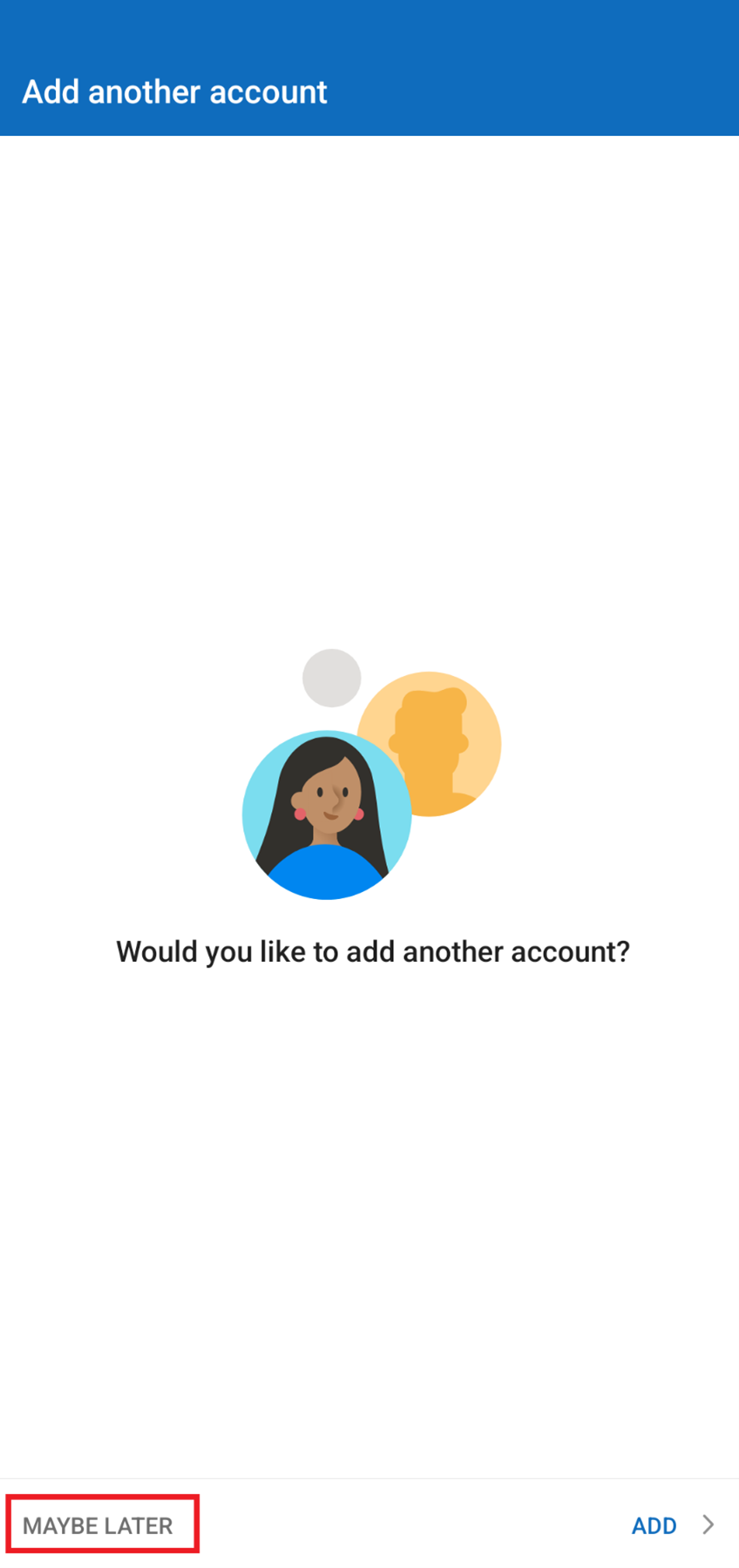
    Next, in the “Add another account” page, click the “MAYBE LATER” button

  8. Then you can start using Outlook Mobile App on Android for HKU Staff Email
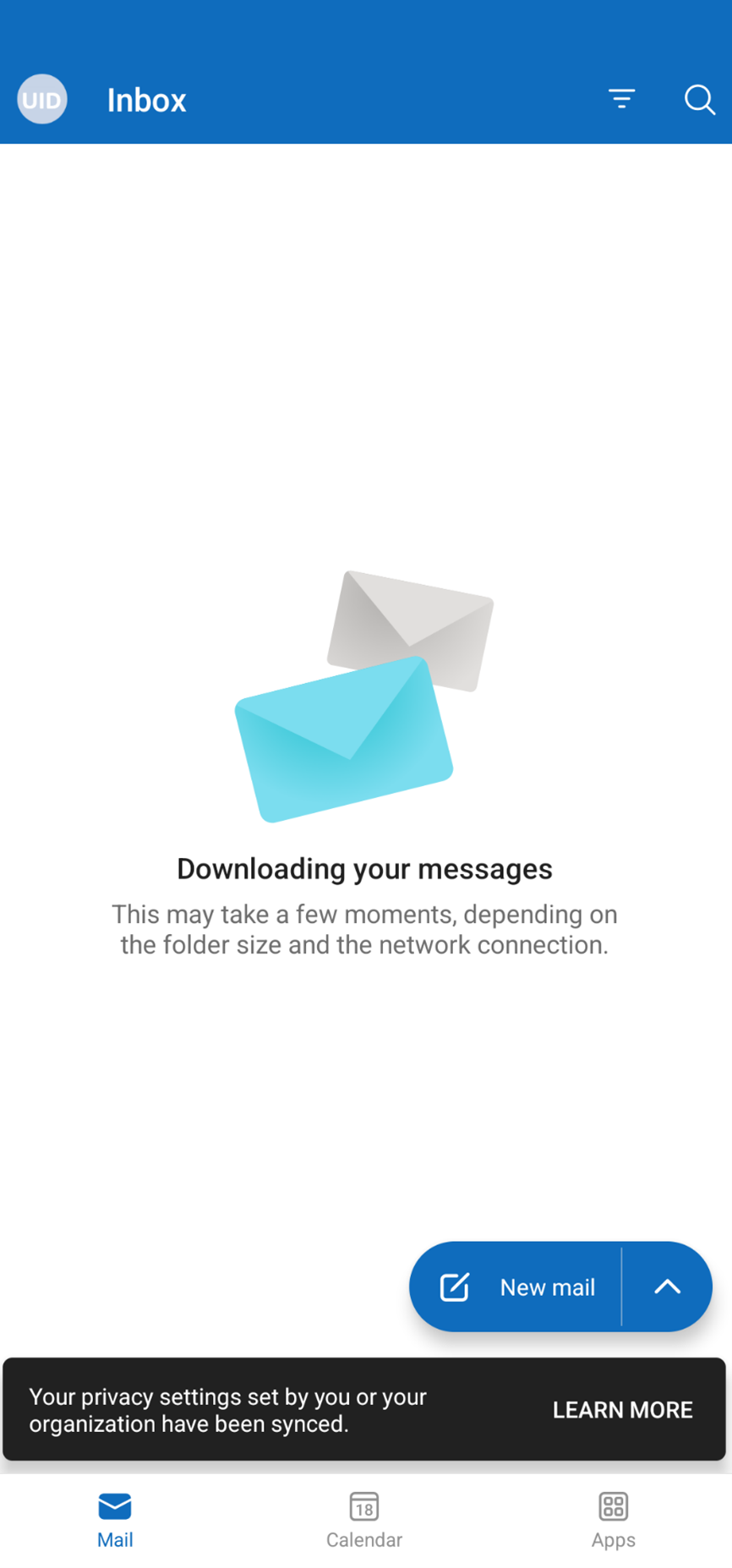
    Then you can start using Outlook Mobile App on Android for HKU Staff Email

0
0