3.1 By command line
- Start the VPN client by following command-
/opt/cisco/secureclient/bin/vpn connect vpn2fa.hku.hk - Enter your HKU email address (UID@hku.hk or UID@connect.hku.hk) and PIN when you see the username and password command line.
- (i) For users who choose Microsoft Authenticator App as the default sign-in method (The most common method):
- Open the Microsoft Authenticator app on your mobile device.
- Retrieve the One-time password (OTP).

(ii) For users who choose SMS (Phone Text) as the default sign-in method: - You will receive an SMS containing the One-time password (OTP) on your registered phone number.
- The OTP is valid for 3 minutes from the time it is sent. Retrieve the OTP from the SMS.

- Enter the 6-digit One Time Password (OTP) in the Answer command line and press Enter.
- When connected, you will see-
- To disconnect from VPN connection, type the following command-
| Username: Password: |
| >> Authentication Message >> Please enter your token code: Answer: <6-digit One Time Password> |
| >> notice: Establishing VPN… >> state: Connected |
| /opt/cisco/secureclient/bin/vpn disconnect |
3.2 By GUI client
- Start the VPN client by the following command-
- Type “vpn2fa.hku.hk” in the Connect to field and click Connect.

- Enter your HKU email address (UID@hku.hk or UID@connect.hku.hk) and PIN in the Username and Password fields respectively and click Connect.

- (i) For users who choose Microsoft Authenticator App as the default sign-in method (The most common method):
- Open the Microsoft Authenticator app on your mobile device.
- Retrieve the One-time password (OTP).

- You will receive an SMS containing the One-time password (OTP) on your registered phone number.
- The OTP is valid for 3 minutes from the time it is sent. Retrieve the OTP from the SMS.

- Enter the 6-digit One Time Password (OTP) in the Answer box and click Continue.

- To disconnect from HKUVPN server, click Disconnect.

| /opt/cisco/secureclient/bin/vpnui |
- Visit your Microsoft 365 account settings at https://myaccount.microsoft.com/
- Sign in using your HKU credentials.
- Go to the “Security info” section.
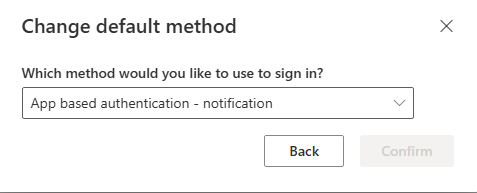
- Set “App-based authentication – Notification” as your default sign-in method under the section titled “You’re using the most advisable sign-in method where it applies.”