Understanding Turnitin LTI 1.3 Assignment
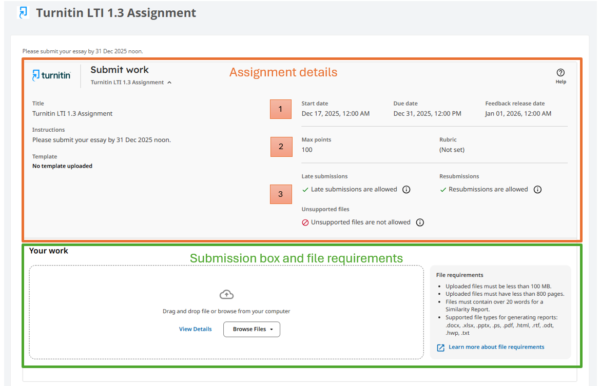
Assignment Details
1. Period
View the Start date, Due date, and Feedback release date for the Turnitin LTI 1.3 assignment.
2. Grading
- Check the Maximum points for the assignment.
- Review the Rubric set by course teachers for evaluation.
3. Submission Settings
Configured by course teachers, includes:
Allow late submissions
- If enabled, students can submit once after the due date, provided no submission was made before the deadline.
Allow resubmissions until due date
- If enabled, students can resubmit until the due date.
[Important]
Students can resubmit up to 3 times within 24 hours. If the limit is reached, they must wait until the next calendar day to resubmit.
Submission box and File Requirements
Submission Methods
- Drag and drop the file into the submission box.
- Browse and upload from your computer.
File Requirements
- Displayed next to the submission box.
- Check requirements before uploading to avoid issues.
How to Submit a Turnitin LTI 1.3 Assignment on Moodle
Tips:
- We strongly recommend submitting your assignment before the deadline to avoid last-minute issues.
- Turnitin recommends creating PDFs with Adobe Acrobat or Microsoft Word 365, as these produce files that Turnitin can check for similarity.
If allowed by your course teacher, you may submit a Word file (.doc or .docx) instead of a PDF.
Steps to Submit
Navigate to your course in Moodle and click on the assignment title you want to submit.
End User License Agreement will appear if this is your first time submitting a Turnitin LTI 1.3 Assignment. Please accept the agreement to proceed.
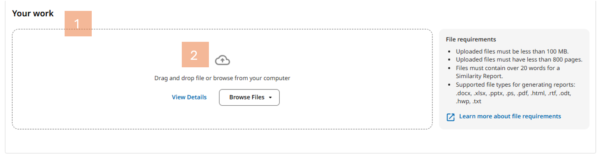
2. Choose one of the following methods to upload you file:
- Drag and drop your file into the submission box.
- Click Browse Files from the pull-down menu.
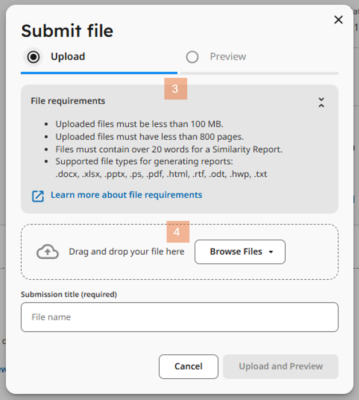
3. A new browser window will open with File requirements. Review these before uploading to avoid issues.
4. Upload your file using Drag and Drop or Browse Files.
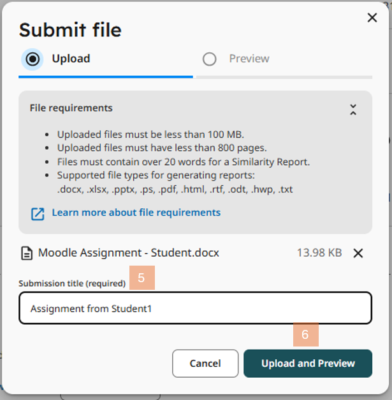
5. Rename your Submission Title if needed.
6. Click Upload and Preview to preview your submission.
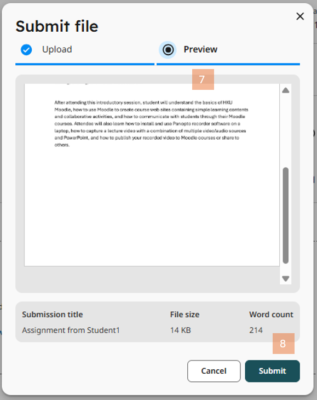
7. Confirm the Correct File is selected.
8. Click Submit when ready.
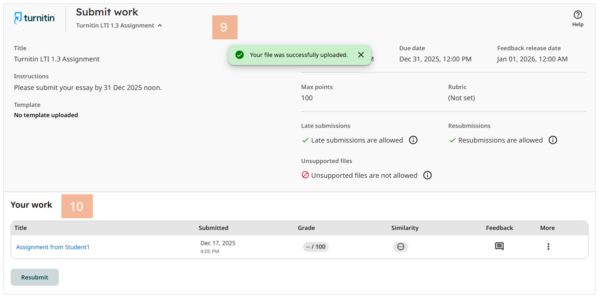
9. A message will appear: “Your file was successfully uploaded.”
10. To verify submission, you will see Assignment Title and Submission date and time under Your Work.
[Important]
If students wish to resubmit their assignments, they can resubmit up to 3 times within 24 hours. However, if the limit is reached, they must wait until the next calendar day to resubmit.
How to Check if Turnitin Received Your Submission
Tip:
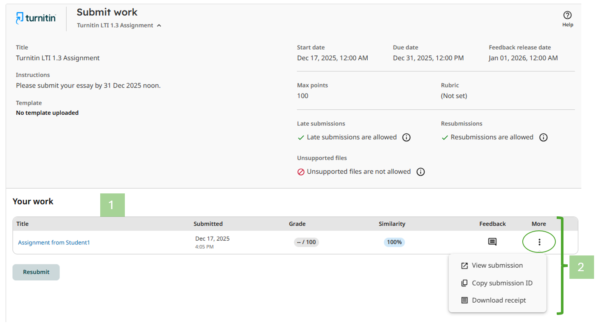
1. Your submission details (Title, Submission date and time) will appear under “Your Work”.
2. Click the Three-Dots Menu for the following options:
- View Submission: Opens a new browser window to view your submitted file.
- Copy Submission ID: Displays the unique Submission ID in a pop-up window.
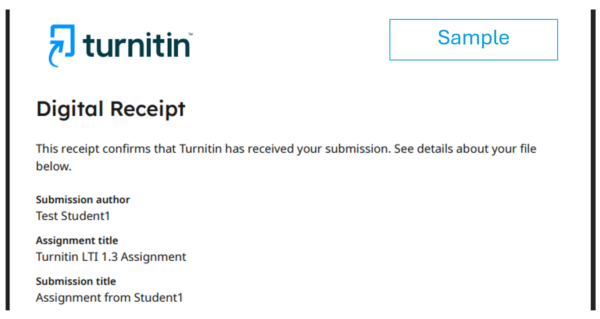
- Download Receipt: Opens a pop-up window with your Digital Receipt confirming Turnitin has received your submission. The receipt includes File name, Submission date and Submission ID.
[Important]
1. Download and keep the Digital Receipt for reference.
2. Ensure your browser allows pop-ups. If pop-ups are blocked, these windows will not appear, and you may miss important messages.