
Setup Procedures for HKUVPN with Multi-Factor Authentication (MFA) for Linux

1. Prerequisite

  1. MFA authentication (MFA) is required for accessing the HKUVPN service.
  2. Only the Microsoft Authenticator App or SMS (Phone Text) are supported as sign-in methods for logging into the HKUVPN service. The phone call method is NOT compatible with HKU VPN. Please refer to the appendix for instructions on changing your default sign-in method to a supported option.
  3. Remove any existing VPN client before installation:
  • If you have an earlier version of Cisco AnyConnect or Cisco Secure Client installed, uninstall it first.
  • If a script-based installation was previously used, remove it with the following command:
    sudo sh /opt/cisco/secureclient/bin/vpn_uninstall.sh

2. Configuration Procedures (to be done once only)

The following steps are illustrated using Ubuntu 24.04.

  1. Download the VPN client for Linux, ensuring that you select the correct package type for your system.
  2. Open a terminal window and navigate to the download folder
  3. Install the VPN client
    • For DEB-based systems (Ubuntu/Debian):
      sudo dpkg -i ./cisco-secure-client-vpn_<version>.deb
    • For RPM-based systems (RHEL/CentOS/AlmaLinux/Rocky):

      sudo rpm -i ./cisco-secure-client-vpn_<version>.rpm
  4. After installation, the client will be installed at /opt/cisco/secureclient/

3. Connection Procedures

3.1 By command line

  1. Start the VPN client by following command-
    /opt/cisco/secureclient/bin/vpn connect vpn2fa.hku.hk
  2. Enter your HKU email address (UID@hku.hk or UID@connect.hku.hk) and PIN when you see the username and password command line.
  3. Username: Password:
  4. (i) For users who choose Microsoft Authenticator App as the default sign-in method (The most common method):
    • Open the Microsoft Authenticator app on your mobile device.
    • Retrieve the One-time password (OTP).
      Retrieve the One-time password (OTP).

    (ii) For users who choose SMS (Phone Text) as the default sign-in method:
    • You will receive an SMS containing the One-time password (OTP) on your registered phone number.
    • The OTP is valid for 3 minutes from the time it is sent. Retrieve the OTP from the SMS. The OTP is valid for 3 minutes from the time it is sent. Retrieve the OTP from the SMS.
  5. Enter the 6-digit One Time Password (OTP) in the Answer command line and press Enter.

  6. >> Authentication Message >> Please enter your token code: Answer: <6-digit One Time Password>
  7. When connected, you will see-

  8. >> notice: Establishing VPN… >> state: Connected
  9. To disconnect from VPN connection, type the following command-

  10. /opt/cisco/secureclient/bin/vpn disconnect

3.2 By GUI client

  1. Start the VPN client by the following command-
  2. /opt/cisco/secureclient/bin/vpnui
  3. Type “vpn2fa.hku.hk” in the Connect to field and click Connect.

    Type “vpn2fa.hku.hk” in the Connect to field and click Connect.
  4. Enter your HKU email address (UID@hku.hk or UID@connect.hku.hk) and PIN in the Username and Password fields respectively and click Connect.

    Enter your HKU email address (UID@hku.hk or UID@connect.hku.hk) and PIN in the Username and Password fields respectively and click Connect.
  5. (i) For users who choose Microsoft Authenticator App as the default sign-in method (The most common method):
    • Open the Microsoft Authenticator app on your mobile device.
    • Retrieve the One-time password (OTP).

      Retrieve the One-time password (OTP).
     (ii) For users who choose SMS (Phone Text) as the default sign-in method:
    • You will receive an SMS containing the One-time password (OTP) on your registered phone number.
    • The OTP is valid for 3 minutes from the time it is sent. Retrieve the OTP from the SMS.

      The OTP is valid for 3 minutes from the time it is sent. Retrieve the OTP from the SMS.
  6. Enter the 6-digit One Time Password (OTP) in the Answer box and click Continue.

    Enter the 6-digit One Time Password (OTP) in the Answer box and click Continue.
  7. To disconnect from HKUVPN server, click Disconnect.

    To disconnect from HKUVPN server, click Disconnect.

Appendix: (Optional Step) Updating the Default Sign-in Method in MFA

  1. Visit your Microsoft 365 account settings at https://myaccount.microsoft.com/
  2. Sign in using your HKU credentials.
  3. Go to the “Security info” section.
  4. Set “App-based authentication – Notification” as your default sign-in method under the section titled “You’re using the most advisable sign-in method where it applies.”
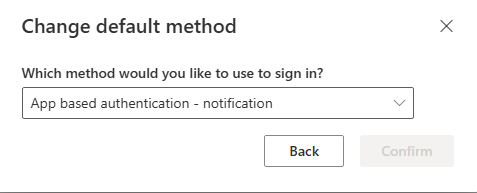
    4.	Set "App-based authentication - Notification" as your default sign-in method under the section titled "You’re using the most advisable sign-in method where it applies."
1
0