
How to Create a Gradescope Assignment via Moodle
- Turn on “Edit Mode“.
- Click “Add an activity or resource“.
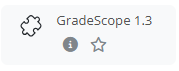
- Select “GradeScope 1.3” and Click “Add” to continue.
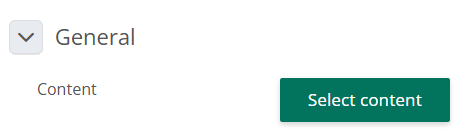
- Press the green button “Select content“.
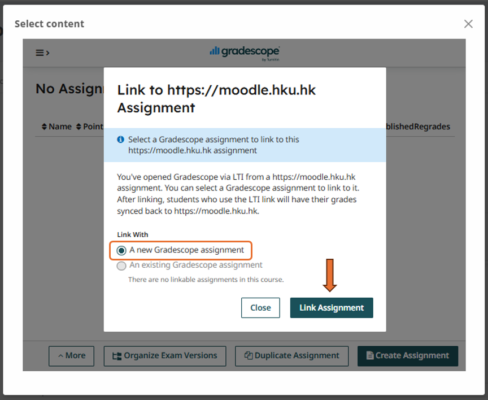
- Select a Gradescope assignment to link to the Moodle course (suggest choosing “A new Gradescope assignment“) and then click “Link Assignment” to continue.
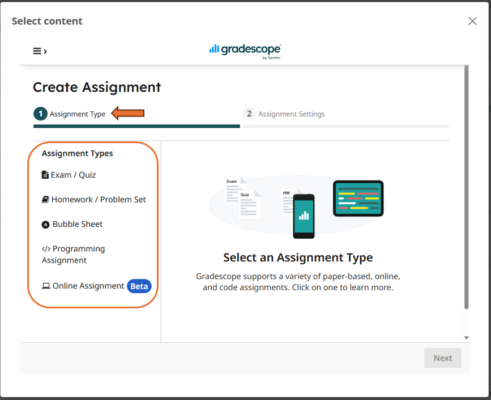
- Choose one of the assignment types from the left column and click “Next“.
- Complete the settings in the Assignment Settings section, including the assignment title, release date, due date, submission settings, and other relevant options as required.
How to Grade Submissions in Gradescope
- Navigate to the Gradescope assignment in your Moodle course.
- You will be directed to the Gradescope platform (gradescope.com).
- Instructors can view all submissions from the Manage Submissions tab.
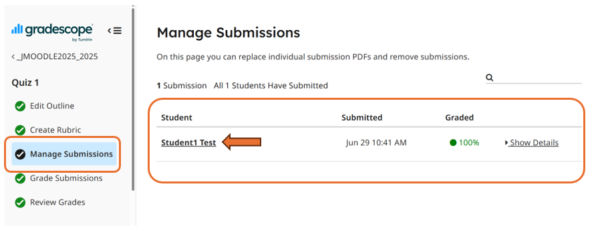
- Choose a student submission to begin grading.
- Create rubrics for the questions if applicable. Instructors can do this now or while grading. (Reference: Creating rubrics).
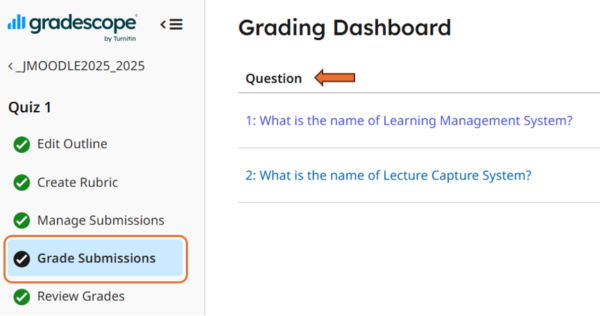
- Gradescope allows instructors to grade submissions by question rather than by student.
Once grading is completed, select Review Grades to verify grades and feedback. Instructors can click publish grades to release the results to students (Reference: Reviewing grades).*
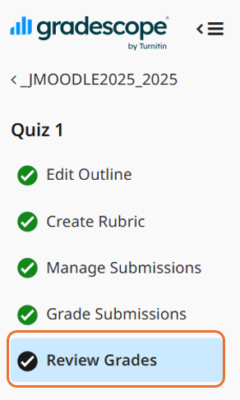
After grades are published, students can view their scores and feedback in Gradescope.
* For Gradescope assignments created through Moodle using Gradescope LTI 1.3, grades can be synchronized with the Moodle Gradebook.
- Ensure grading has been completed in Gradescope.
- Publish the grades in Gradescope.
- Grades can be synchronized to the corresponding Moodle Gradebook item by clicking “Post Grades to https://moodle.hku.hk“.

Important: Grade synchronization is only available for assignments that were created through the Moodle course using the Gradescope LTI 1.3 integration. Assignments created directly on the Gradescope website (gradescope.com) are not linked to Moodle and will not support automatic grade synchronization.
For detailed guidance on grading, please refer to the following resources:
- Grading a Simple Question
- Grading Homework/ Problem Set Assignments – Gradescope Guides
- Grading Online Assignments – Gradescope Guides
- Grading an Exam/Quiz Assignment – Gradescope Guides
- Grading a Bubble Sheet Assignment – Gradescope Guides
- Grading a Programming Assignment – Gradescope Guides
- Review and Publish Grades
Getting Help and Support
If you have any questions regarding the use of Gradescope, you may refer to the following support channels:
1. Gradescope AI Chatbot
The Gradescope AI Chatbot is available on the Gradescope website and can provide instant assistance for common questions and troubleshooting.
Website: https://guides.gradescope.com/hc/en-us 
2. Gradescope Guides
The Gradescope Guides contains comprehensive user guides and frequently asked questions for instructors and students.
Website: https://guides.gradescope.com/hc/en-us
3. Contact Gradescope Support
For enquiries that cannot be resolved through the AI Chatbot or Gradescope Guides, you may contact the Gradescope Support Team directly.
Email: help@gradescope.com