
Quiz Generation
- Click onto ‘AI Content Generation’ from the navigation bar of your course.

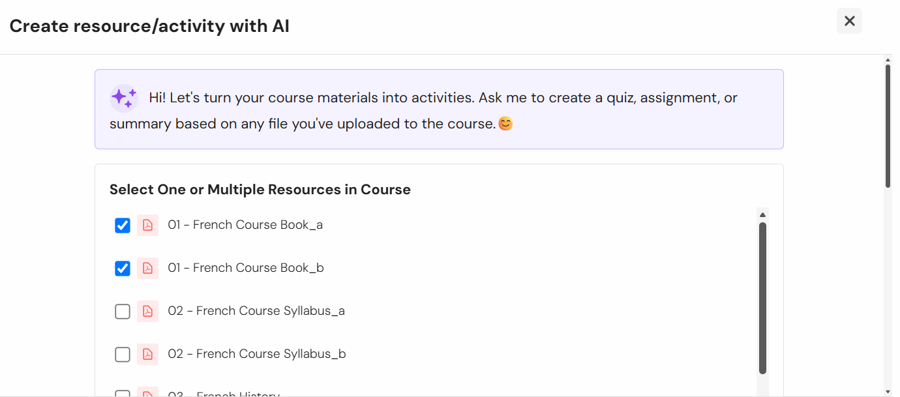
- To use this feature, make sure you already have content in PDF format uploaded already within your course. A list of valid documents will be shown and pick one or more for the quiz generation.
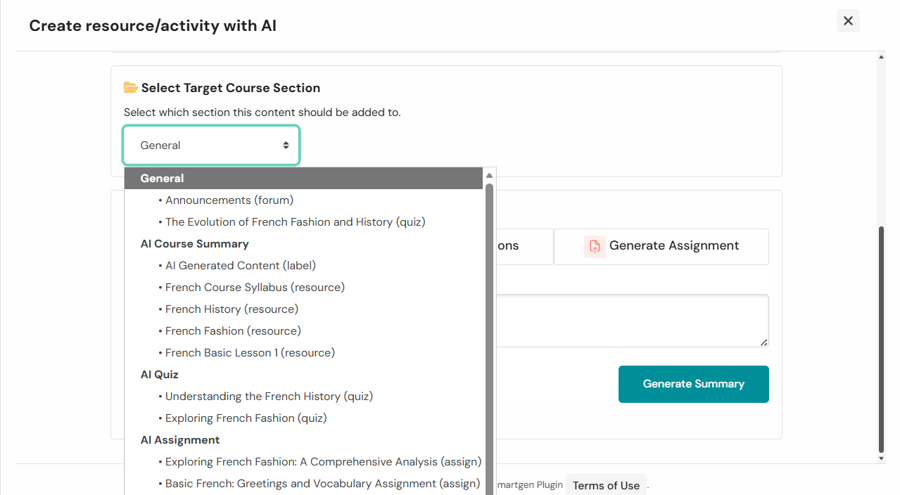
- Scroll down to select the target section in the course for where the generated quiz will be added.
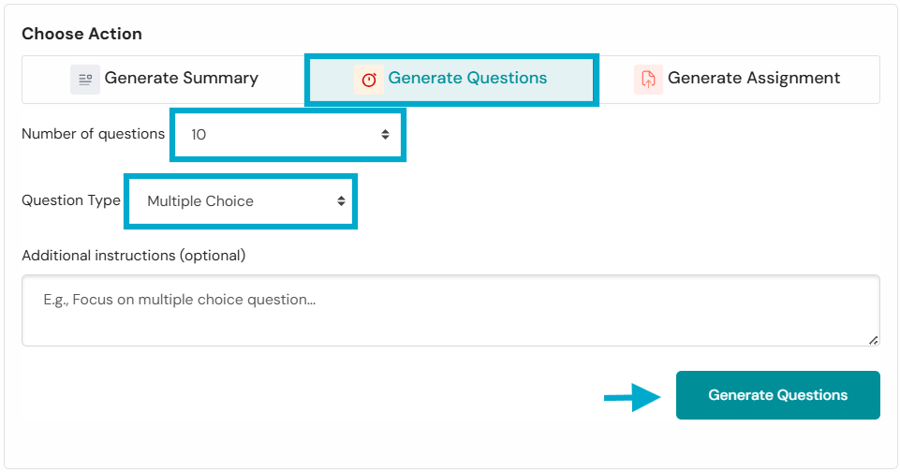
- Choose action as ‘Generate Questions’, then select the number and type of questions to be generated. Proceed to generate questions at the bottom of the page.
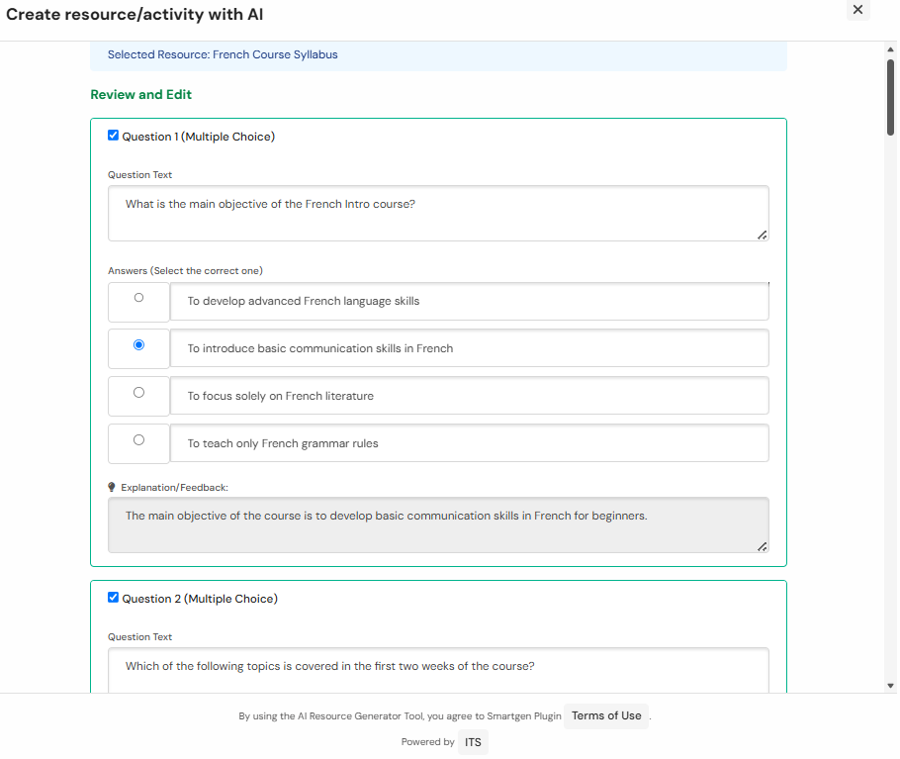
- The next page will show you which resource has been selected. Go ahead to review and edit the suggested questions and answers. Modify them to your need.
- Scroll down for the Chatbot of AI Quiz Setting Assistant. If you decide to use it, you can have it to set standard quiz settings and requirements through (a) selecting the preset bubbles or (b) typing specific ones. Remember, AI sometimes can get wrong. You are advised to have a check after creation.
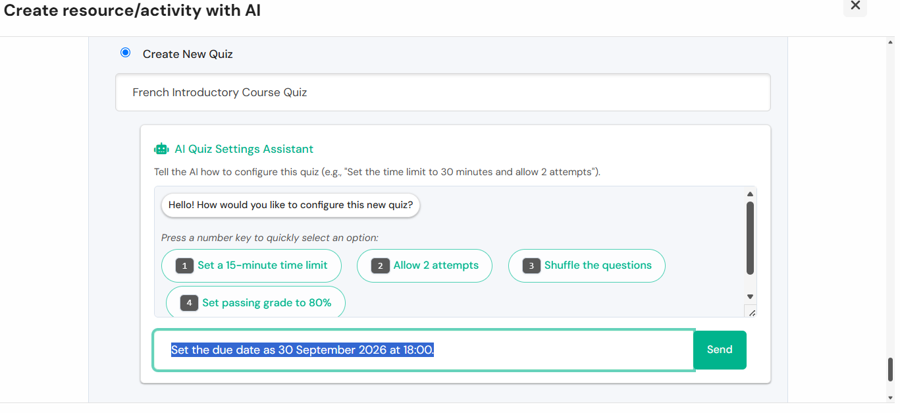
- Before saving, it’s by default to help you create a new quiz with the above setting. Or else, you can also choose to add the questions into an Existing Quiz or into a target Question Bank only. If going by the default, upon saving, the above quiz will be set up for your review.
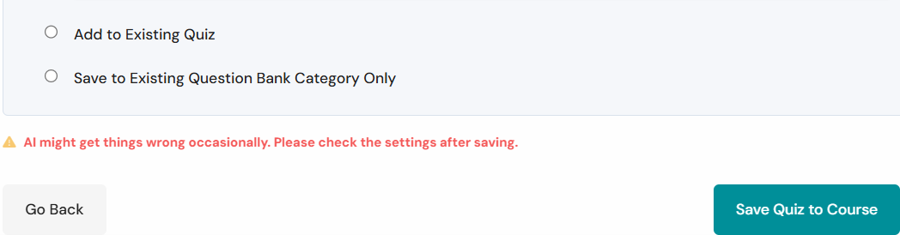
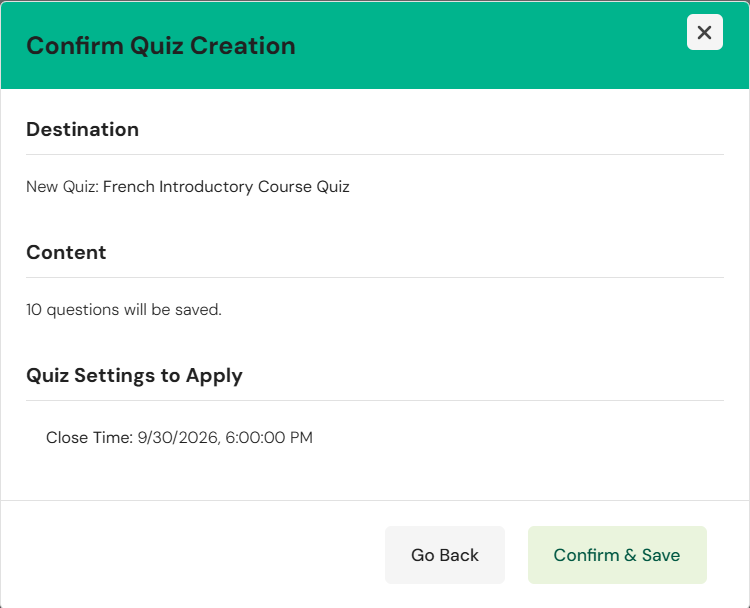
- Confirm the details and save.
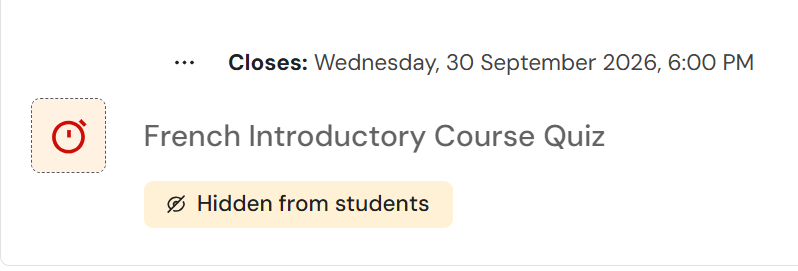
- The quiz will be hidden from students by default. You may then go ahead to check the setting as well as the questions of this generated quiz.
Assignment Generation
- Click onto ‘AI Content Generation’ from the navigation bar of your course like quiz generation.
- Likewise, make sure you already have content in PDF format uploaded already within your course. A list of valid documents will be shown and pick one or more for the assignment generation.
- Scroll down to select the target section in the course for where the generated quiz will be added.
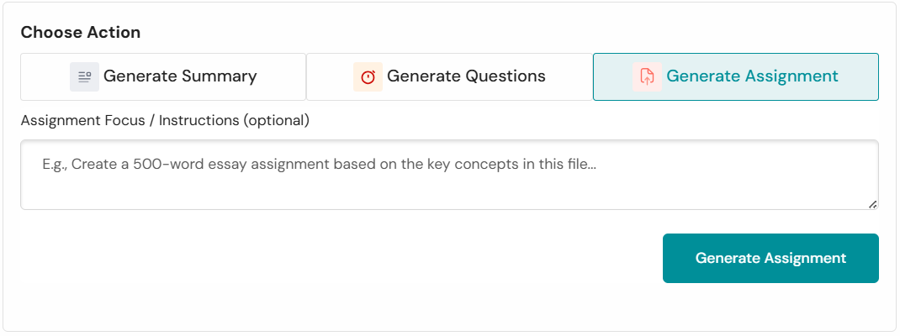
- Choose action as ‘Generate Assignment, then proceed to generate assignment at the bottom of the page.
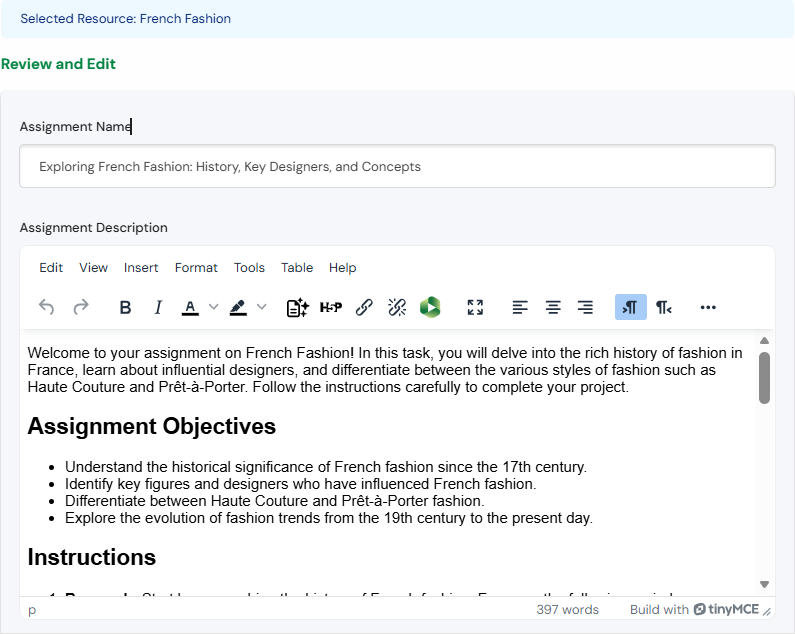
- The next page will show you which resource has been selected. Go ahead to review and edit the suggested assignment description where the AI has suggested an outline of the activity with working instructions. Modify them to your need.
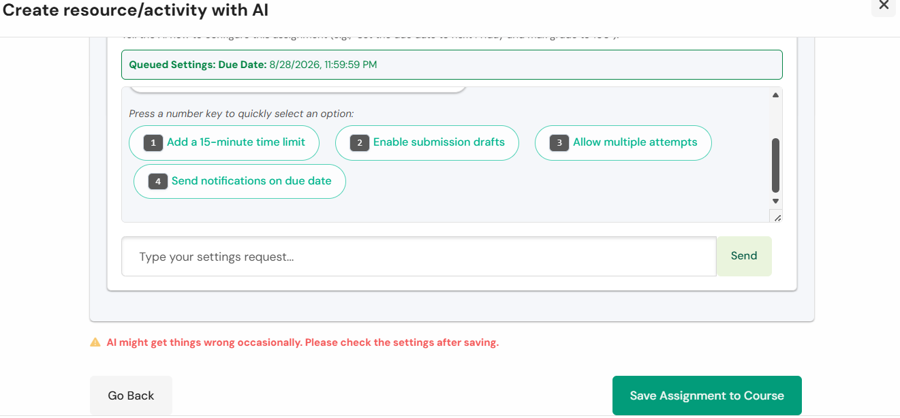
- Scroll down for the Chatbot of AI Assignment Setting Assistant. If you decide to use it, you can have it to set standard assignment requirements through (a) selecting the preset bubbles or (b) typing specific ones. Remember, AI sometimes can get wrong. You are advised to have a check after creation.
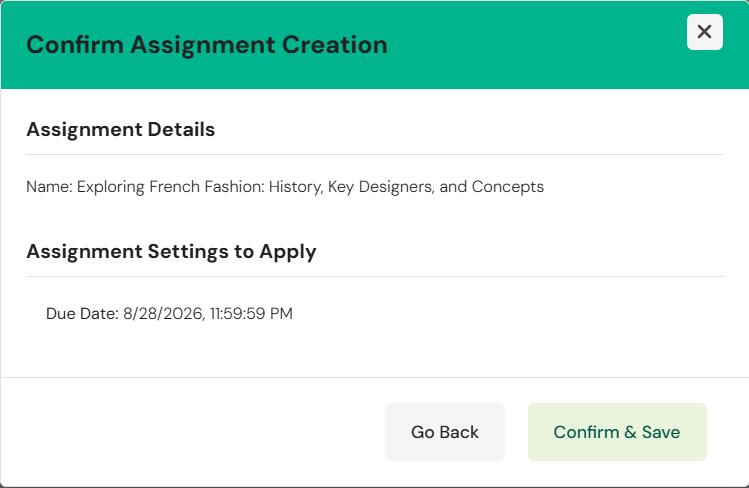
- Confirm the details and save.
- The assignment will be hidden from students by default. You may then go ahead to check the setting and polish up the assignment to your instructional need.

Course Section Summary Generation
- Click onto ‘AI Content Generation’ from the navigation bar of your course.
- Again, make sure you already have content in PDF format uploaded already within your course. A list of valid documents will be shown and pick one or more for the summary generation.
- Scroll down to select the target section in the course for where the generated summary will be added.
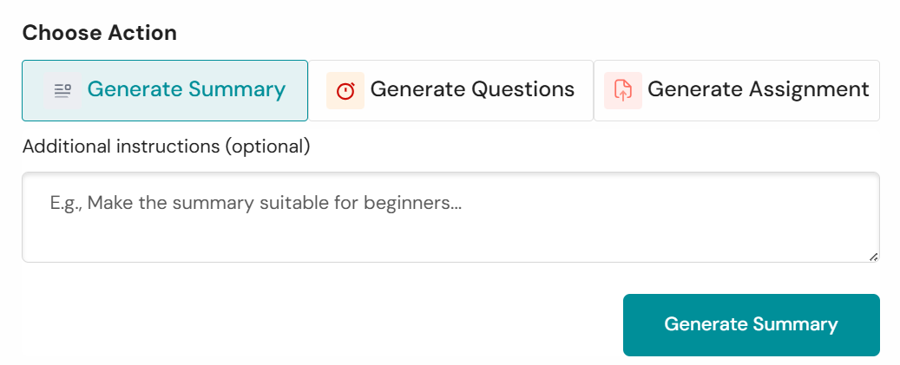
- Choose action as ‘Generate Summary’. Proceed to generate at the bottom of the page.
- The next page will show you which resource has been selected. Go ahead to review and edit the course section summary. Modify it to your need. Then, proceed to adding it to the target section.
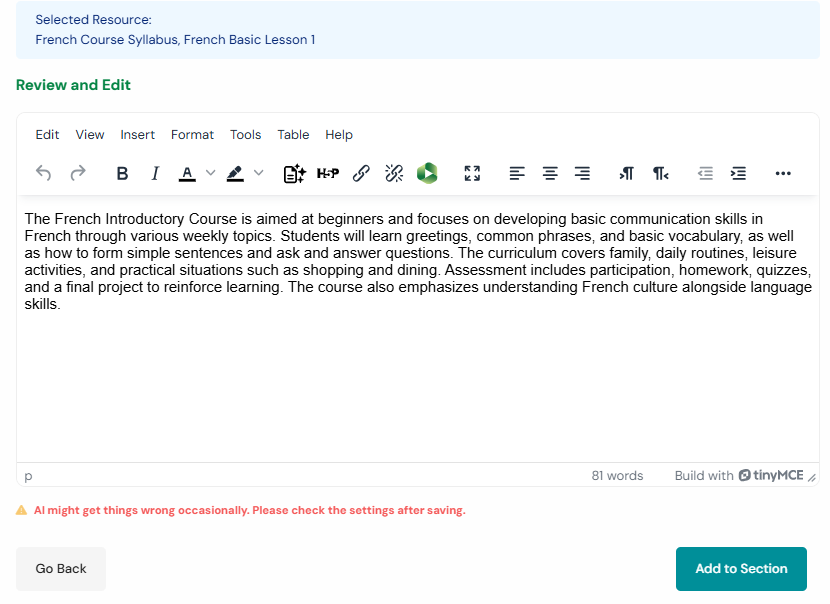
- The course section summary will be hidden from students by default. You may then go ahead to check and make necessary edits before revealing it.
