- Switch on the “Edit Mode” on the top right of Moodle Course.
- Click “Add a block” and select MS Teams.

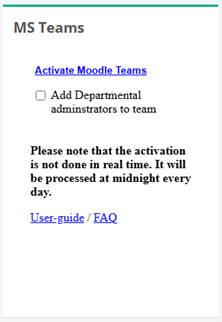
- Upon adding the block of MS Teams on the right pane, go to the block, and click Activate Moodle Teams for activation. MS Teams will be activated one day after clicking the activation.
- Once MS Teams is activated, two links will be available in the block, (i) Open Teams, and (ii) Open SharePoint Folder.
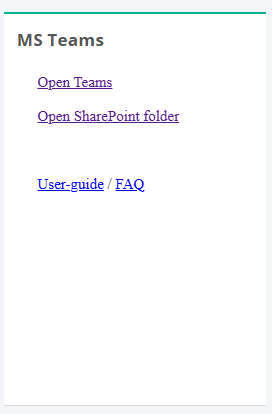
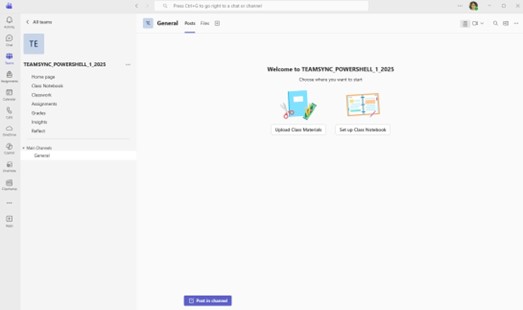
- You can click Open Teams to access MS Teams of the Moodle Course where you can add conversations, class materials, and so on.
- You can also click Open SharePoint Folder to access the corresponding SharePoint folder.