
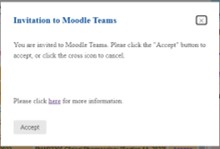
1. Click “Accept” for the Invitation to Moodle Teams on My eLearning page.
2. Sign in the Microsoft page with the student connect account (e.g. studentA@connect.hku.hk).

3. Click the “Accept” button.

4. Go to your Moodle course and “MS Teams” block is shown on the right column.
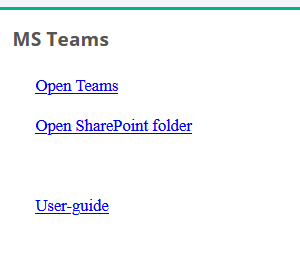
Open Teams via MS Teams block
Click “Open Teams” and you will be directed to the MS Teams.
- If you have not signed in to any Microsoft app before, you will be asked to sign in to Teams. Please use your Student Connect account to log in (e.g. studentA@connect.hku.hk).
- Click “Yes” to access the Class in Teams

You can switch to the “The University of Hong Kong (Guest)” on the top right-hand side manually to see Classes in Teams. 
Open SharePoint folder via MS Teams block
Click “Open SharePoint folder” in the “MS Teams” block to open the SharePoint site.
You will be directed to the SharePoint site to access the folder shared by the course teacher.
