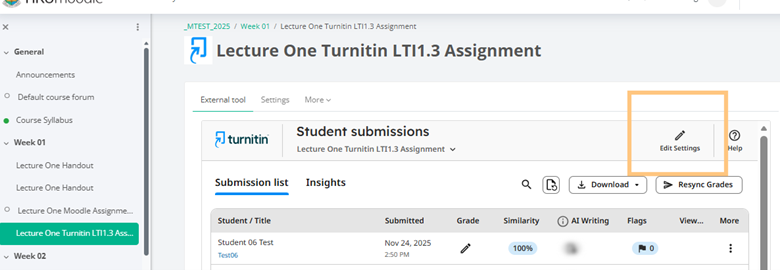
Understanding Turnitin LTI 1.3 Assignment
1. Assignment Details
Click the arrow button (as indicated below) at the top right of the assignment details box to show or hide the details.
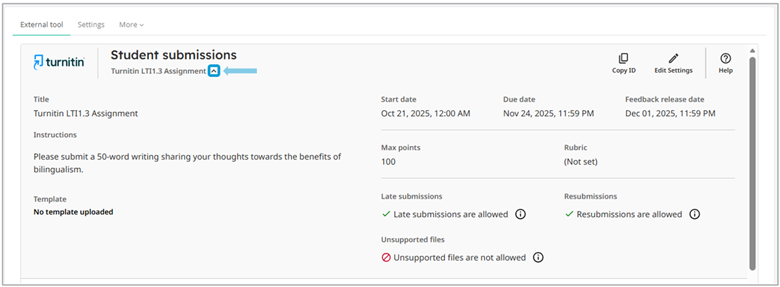
Within the assignment details, you can: edit assignment settings, copy the assignment ID, review the assignment schedule, review a summary of the assignment settings, download a copy of the assignment template if one has already been uploaded, etc.
2. Elements of Assignment Submission Page
Action Buttons
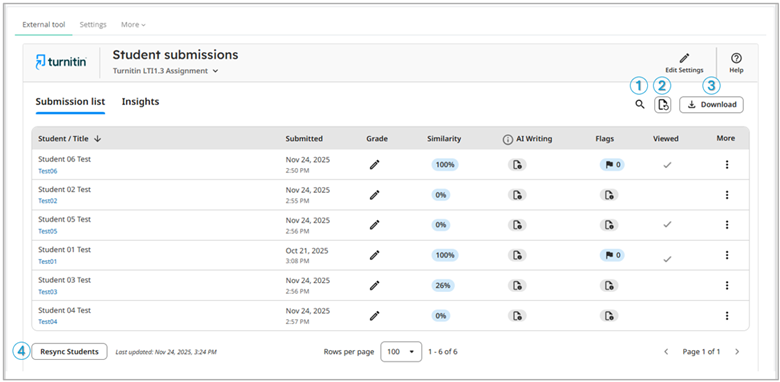
On the top right and bottom left of the Submission List, we’ll find some action buttons:
- Search – Search for a specific student or submission.
- Rerun reports – Check for any updates to the submission list without reloading the webpage. This includes updated submission data or refreshed reports. Similarity scores can change after being regenerated due to a change in exclusion settings or more resources being added to Turnitin’s comparison repositories. Please be alert that the assignment is limited to 3 reruns in a 24 hour period.
- Download – Download a CSV file containing submission data for the assignment. The CSV always contains an email column, but it will only populate when an email address is available. When anonymous grading is turned on, the CSV does not display any email addresses; however, once a student’s identity is revealed, their email will appear in this column.
- Resync grades – Re-send assignment grades to the gradebook.
Submission List

The Submission List includes the following information heading for each student:
Student / Title – The student’s first and last name, followed by the title of their submission.
Submitted – The date and time the submission was received. Late submissions appear in red.
Grade – Displays the assigned grade. A pencil icon indicates the submission is ungraded.
Similarity – The similarity score. If a Similarity Report is not available, dashes will appear.
AI Writing – The AI writing indicator score given as a reference. If no AI Writing report exists, there could be the following reasons:
- Submission file is an unsupported file type
- Submission text is in an unsupported language
- Qualifying text is either fewer than 300 words or more than 30,000 words
Flags – Shows a flag icon and the number of flags identified for the submission.
Viewed – Indicates the student opened their submission and viewed their grade or feedback.
More – A menu with options to: open the report, copy the submission ID, (re-/)submit a file on behalf of the student, grant the student an extension, and directly request a permanent deletion of the submission.
Creating a Turnitin LTI 1.3 Assignment on Moodle
(I) To add:
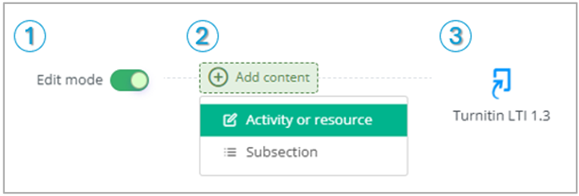
To start using the LTI 1.3 Assignment, we need to (1) switch on the Edit Mode as usual on the top right of our course page, and (2) add an activity with (3) choosing Turnitin LTI 1.3 from the Activity List:
(II) To create and select the content:
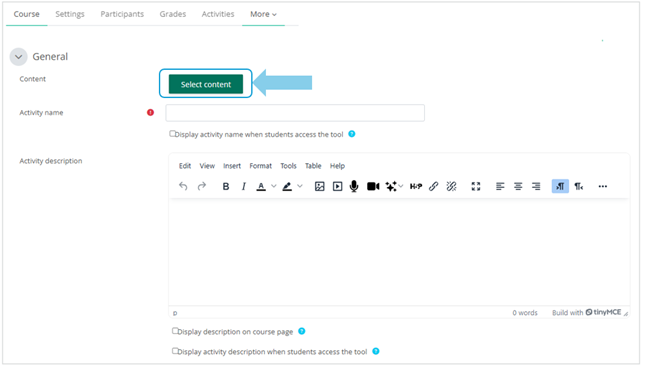
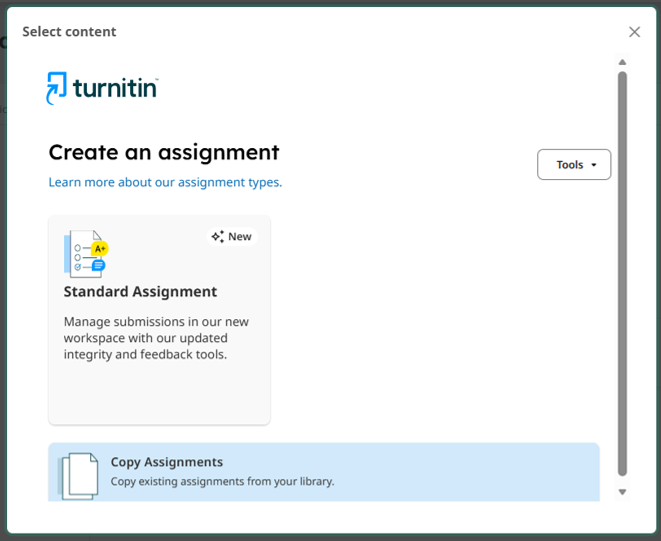
Click ‘Select content’ button, and we will be prompted with a pop-up window to create the assignment by selecting ‘Standard Assignment‘.
Assignment Details
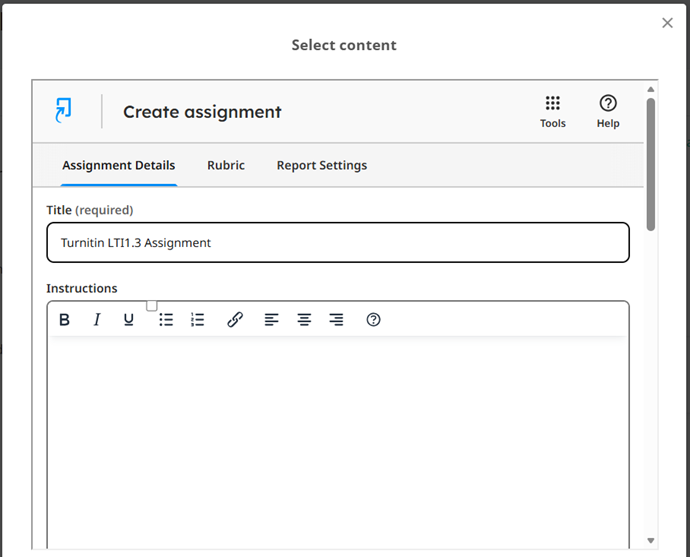
We go ahead adding a title for the Assignment Details, then instructions when helpful.
Assignment Schedule
We move on to set the Assignment Schedule according to the types of dates and time:
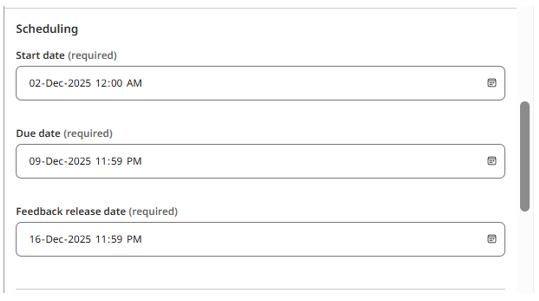
Start date and time – the moment students will be able to start submitting to the assignment;
Due date and time – the moment students will no longer be able to submit to the assignment;
Feedback release date and time [formerly known as ‘Post Date’] – the moment when any grading and feedback is visible to students. (This does not affect when students can view similarity scores.)
Submission Settings
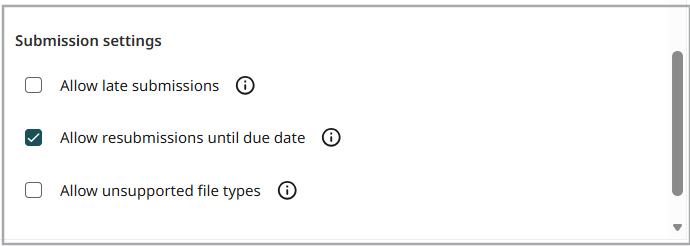
Under the Submission Settings, teachers can easily decide whether to:
Allow late submissions – if enabled, students can submit once after the due date has passed given no submissions have ever been made before the due date;
Allow resubmissions until due date – if enabled, students can resubmit until the due date. However, please be reminded that students are only able to resubmit 3 times in a 24-hour period. If they have resubmitted more than 3 times within 24 hours, they will need to wait until the next calendar day to resubmit again.
Allow unsupported file types – normally we leave this blank to make sure the submission can be rendered by Turnitin for Similarity Reports. Please see details regarding supported formats here: File requirements – Turnitin Guides.
Report Settings
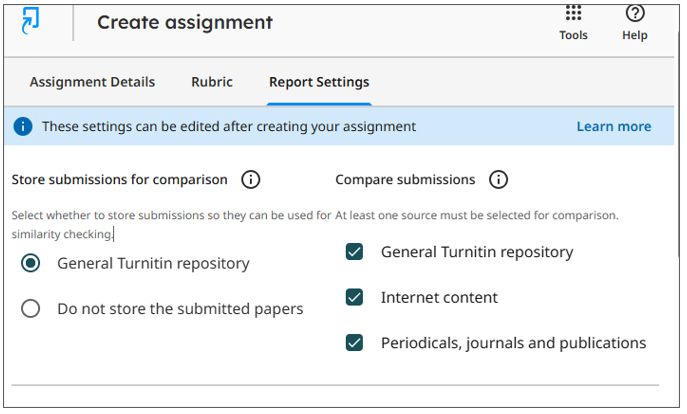
Under the tab of Report Settings, teachers can easily decide whether to:
(1) store student papers in General Turnitin Repository – if checked, students’ submissions will be stored in the Turnitin Database for future matching by other sources; OR
(2) do not store the submitted papers – if checked, students’ work will not be matched against by other future submissions.
For ‘Compare submissions’, remember at least one source must be selected in order for the submitted work to match against sources for a Similarity Score.
Similarity Report Generation Setting
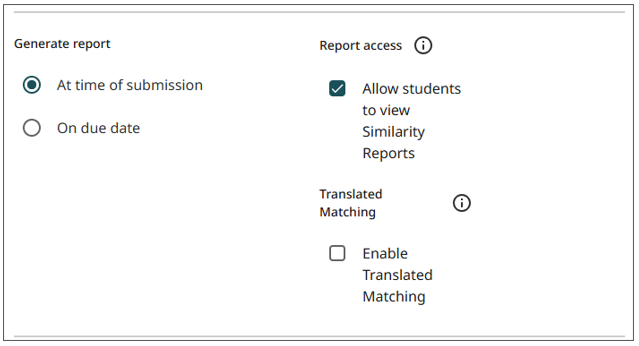
A more intuitive and direct approach to decide (1) the time when similarity reports are generated and (2) whether students can view the reports.
Note on ‘Translated Matching’: Normally, we leave this item blank. Details can be found from here by Turnitin.
Exclusion Setting
Right under this part, teachers can decide what to exclude from matching.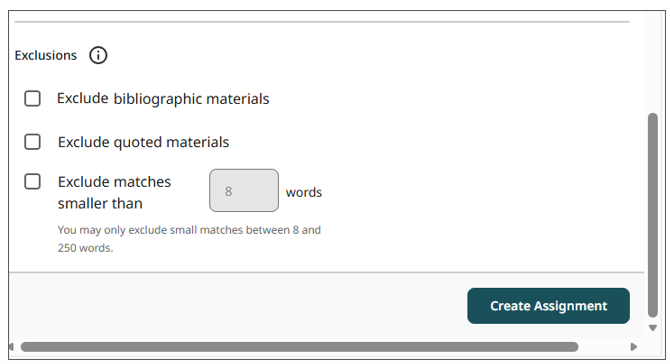
(III) To finish up creating on Moodle
Let’s then (1) name this Turnitin Assignment Activity, and (2) check the box to allow the activity to add grades to the Gradebook.
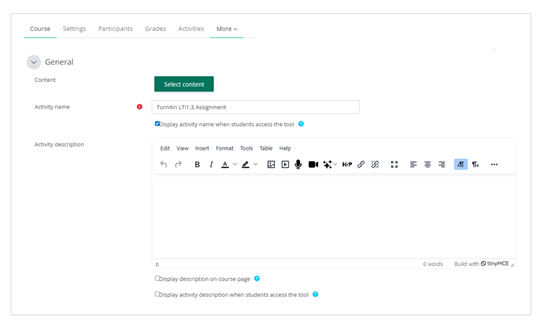
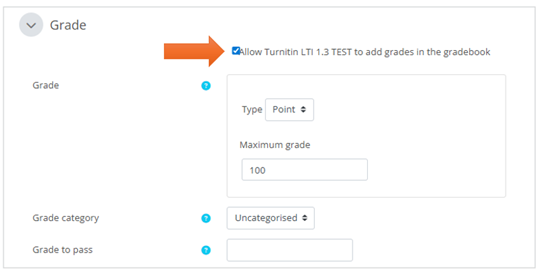
Then, we can save and display this Turnitin LTI 1.3 assignment activity.
Note: Further edits on settings thereafter are to be made from the ‘Edit Settings’ of the Submission Inbox.