
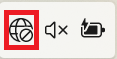
- Click the Network icon at the bottom right corner
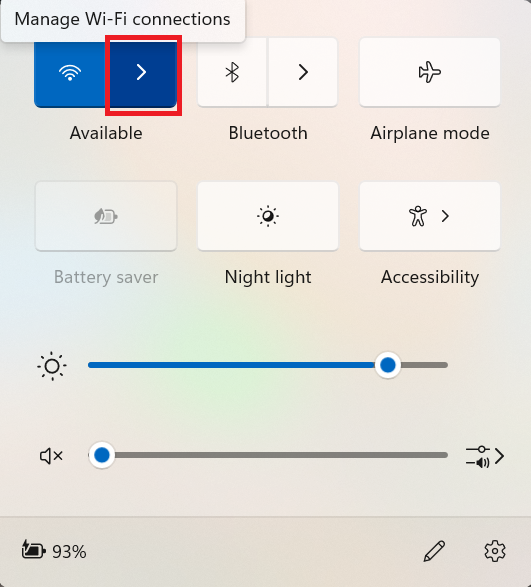
- Click Manage WiFi connections icon
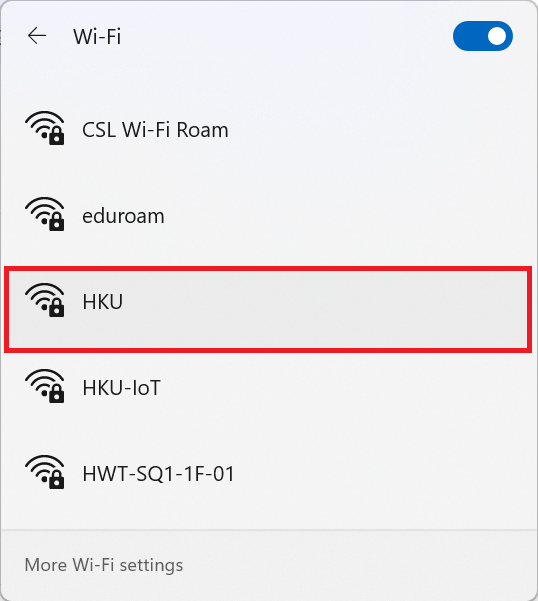
- Click HKU WiFi
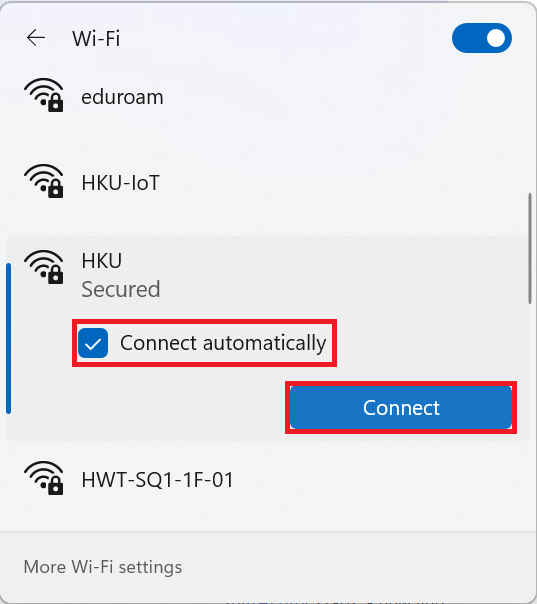
- Make sure Connect Automatically is select and Click Connect.
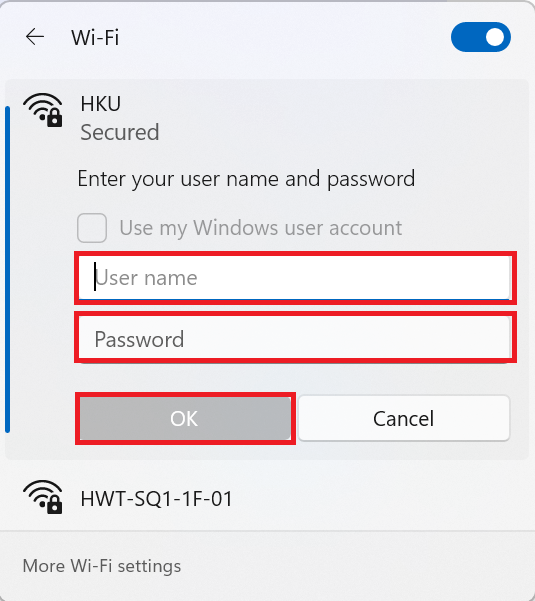
- Enter your user name and password.
- Type your HKU Portal UID in the User name field.
- Type your HKU Portal PIN in the Password field.
- Click OK to logon.
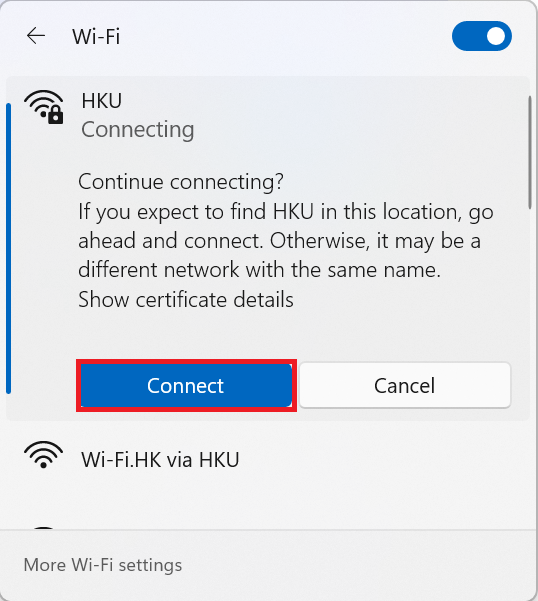
- Click Connect
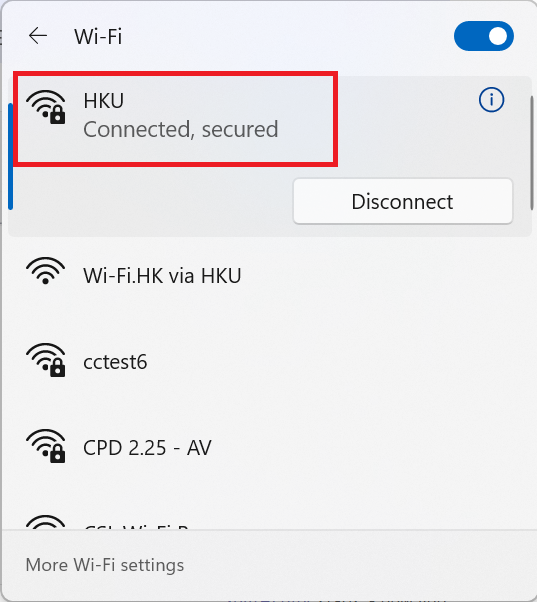
- Your PC is configured for connecting to HKU WiFi
- Click the Network icon at the bottom right corner.
- Click Manage WiFi connections icon
- Click HKU WiFi
- Make sure Connect Automatically is select and Click Connect
- Click Connect
- Your PC is configured for connecting to HKU WiFi