
Due to ongoing technical issues with the LTI 1.3 Assignment on Moodle and the lack of an immediate resolution from Turnitin Technical Support, HKU Moodle will revert to the Moodle Turnitin Assignment 2 plugin. To ensure a stable experience for both teachers and learners, this change will take effect starting from May 7, 2026. Please refer to the Teachers’ Quick Guide at Add a Turnitin Assignment 2 » Information Technology Services.
Please note that existing LTI 1.3 Assignment inboxes will remain intact, and submissions made and reports generated are securely retained.
Reporting Cases
There are reporting cases regarding the following, which are arbitrary with unknown root causes.
1. Incomplete Submission Lists or No Student Records
We are experiencing an urgent issue where student submission lists are not appearing or only reflect a few in the instructor’s view. Despite students being enrolled in the course, the roster fails to sync correctly, leaving instructors unable to verify or grade submissions.
2. Pseudo-Submissions
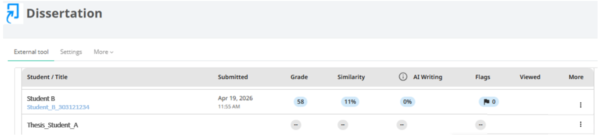
We are also seeing cases of ‘pseudo-submissions’. Students viewed from their screen that their work had been uploaded, yet the submission did not appear in the instructor’s inbox. Upon checking, the student work did not pass to the Turnitin server (not yet submitted). This discrepancy is creating a serious trust gap in the platform’s reliability for high-stake assessments.
3. Grade Synchronisation Failure
Grade Synchronisation failed at times between Turnitin LTI 1.3 and the Moodle Gradebook. For the affected Turnitin LTI 1.3 assignment, the instructor has completed grading in Feedback Studio, and the grades are correctly displayed in the submission list. The Feedback Release Date has passed, and students can successfully view their grades and feedback in Turnitin. However, the grades have not been synced to the Moodle Gradebook.
Temporary Workarounds for Affected Turnitin LTI 1.3 Assignments
Trusts and understanding from fellow colleagues are well received and appreciated. Continuous efforts and negotiations have been madewith Turnitin. The following might serve as a band-aid helpregarding each individual type of reporting cases stated above.
1. Incomplete Submission Lists or No Student Records
Given the issue on Instructor’s view, students can still view and submit to the Turnitin Assignment Inbox as normal. Once a corresponding student has viewed and clicked into the Assignment Inbox, the name of this student then shows up under the ‘Submission List’ on the Instructor’s end.
Students can still see the Inbox as below:
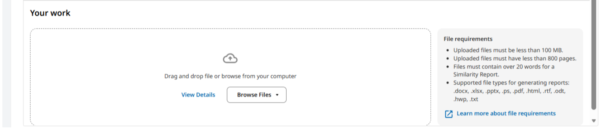
After Student A and Student B click and view the assignment, it will show:

When a submission is made, it will look like:

WORKAROUND: While we are waiting for a fix by Turnitin, help from the Teaching Team is important to inform the whole class of the situation and ask them to click into and view the assignment inbox at least once in order to show their student names under the list on Instructor’s end.
2. Pseudo-Submissions
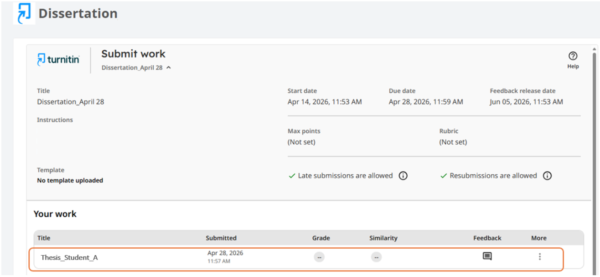
It’s observed that the Assignment Title shown on the Student’s view is displayed in black. In addition, the Submission ID and the View assignment option are not available under the ‘More’ menu. Given the above, the submission is thus not successful. Illustrations can be found in the following screenshots.
To verify a successful submission on Students’ end, the following indicators should be present:
- The assignment title is displayed in blue, allowing students to click and view the submitted paper.
- A Submission ID is available and can be copied from the ‘More’ menu.
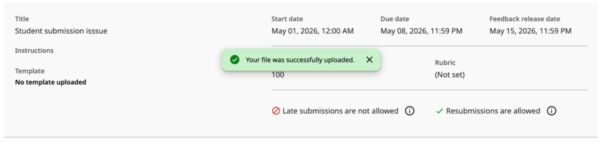
- A students should see a confirmation notice in green bubble, and be able to view the submission and access a digital receipt as proof of submission (no email will be sent by Turnitin since this version of LTI 1.3).
View from Student A, seemingly submitted but actually NOT –
View from Instructor, no submission from Student A –
Pop-up confirmation message in green bubble, upon a successful upload –
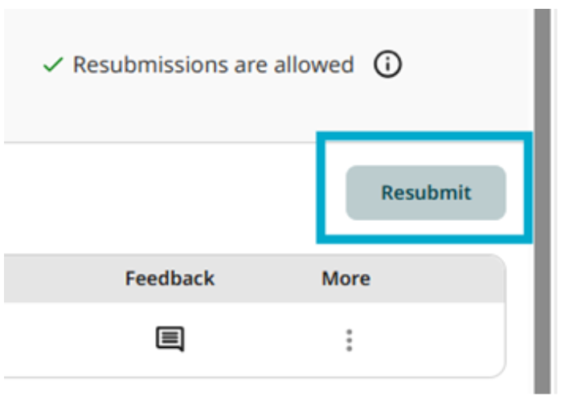
WORKAROUND: Educate the students for how to verify a successful submission. Moreover, 1) submit the file on behalf of this student. OR, 2) grant an extension to this student. Once an extension is granted, the ‘Resubmit’ button will be re-enabled; or the student will see the submission box as usual which allows the students to upload the assignments again.
3. Grade Synchronisation Failure
WORKAROUND: With much regret, manual administration will be needed in this case prior to any fixes given by Turnitin.