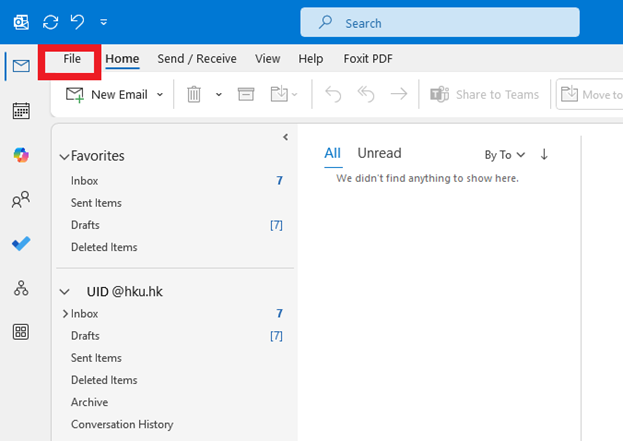
- In Microsoft Outlook client, click “File” on top
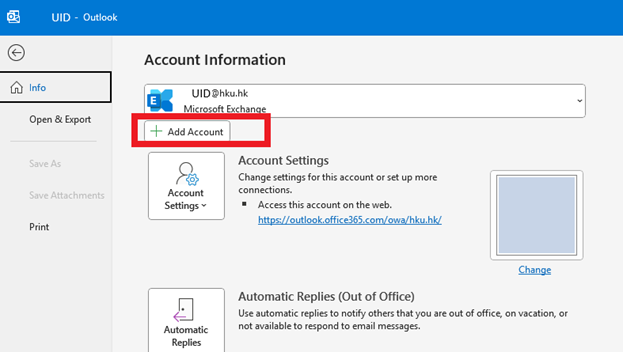
- Click “Add Account”
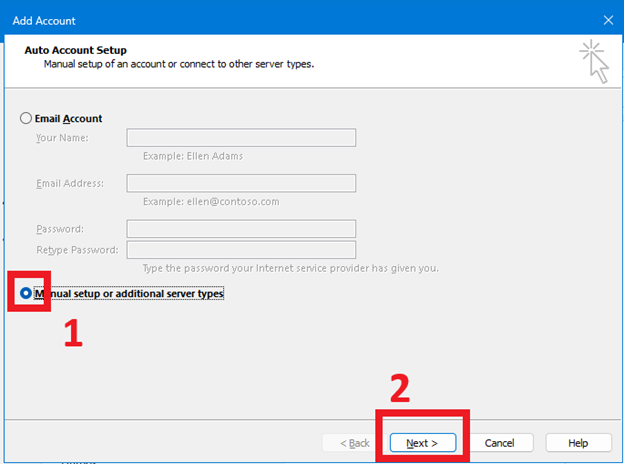
- Choose “Manual setup or additional server types” in Add Account dialog box. Click “Next>” button
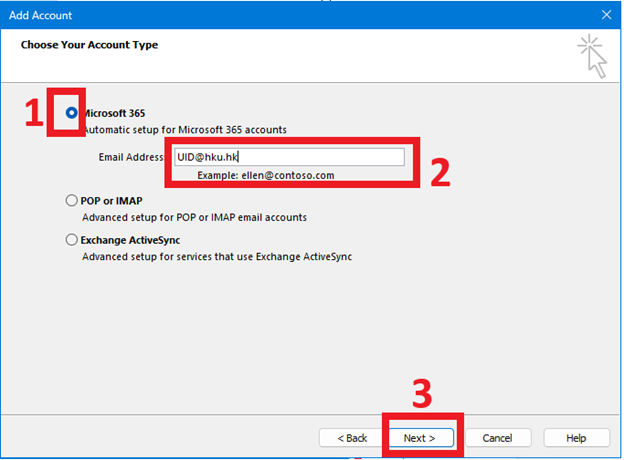
- “Tick” the box of Microsoft 365 button. Then enter the UID of the mailbox needs to be added in Email Address field and then click “Next>” button
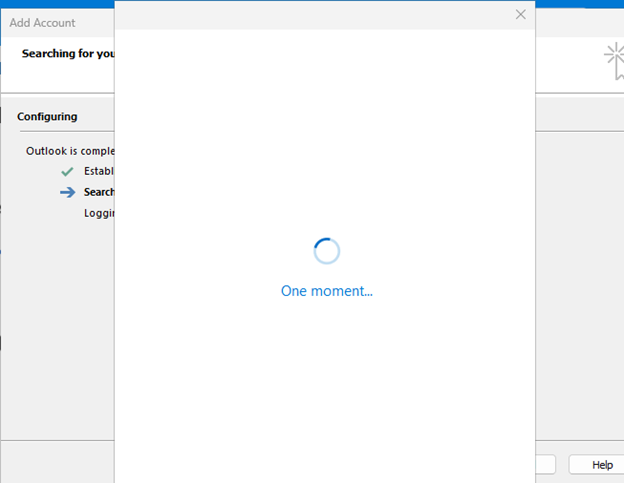
- Outlook account configuration in process
- Enter the PIN of the mailbox that needs to be added. Click “Sign in” button.
* It will go through MFA process if your computer is not in HKU IP address range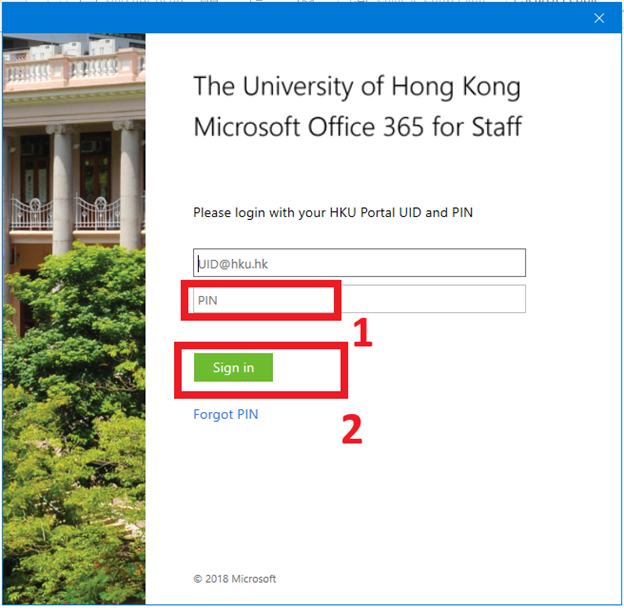
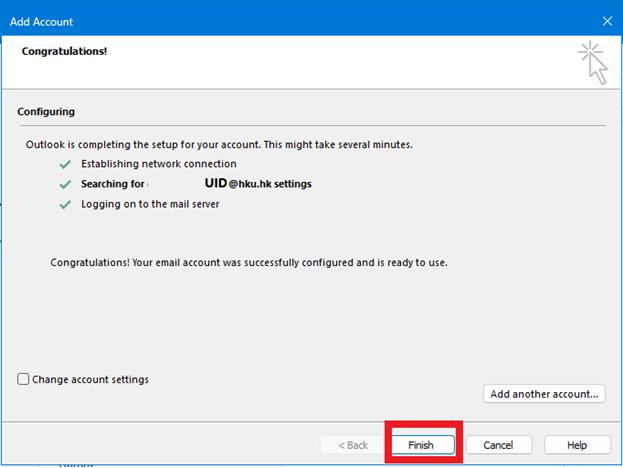
- Adding another mailbox to Outlook client is completed. Click “Finish” button
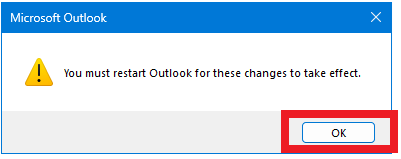
- Click “OK” to restart Outlook
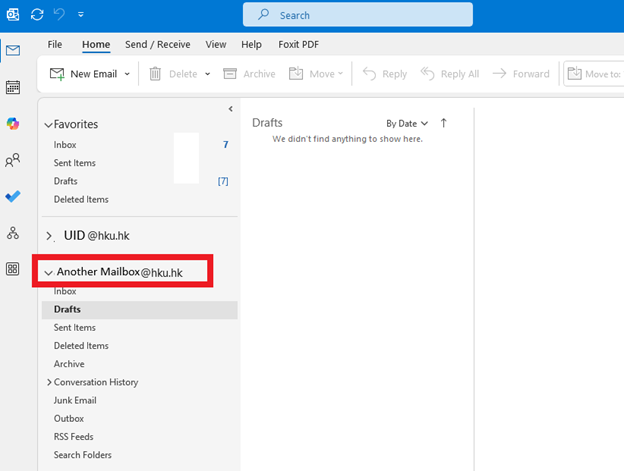
- After Outlook restart, the left panel will show the other mailbox being added into your Microsoft Outlook client