Adding another HKU Exchange Online mailbox in Microsoft 365 Outlook

  1. In Microsoft 365 Outlook, click “File” on top
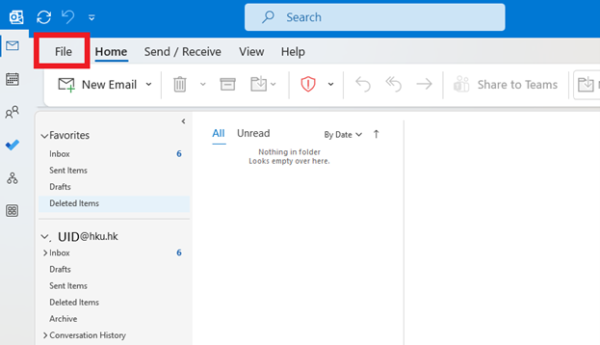
    In Microsoft 365 Outlook, click “File” on top

  2. Type “Control Panel” in search box and then select the best match result “Control Panel” App
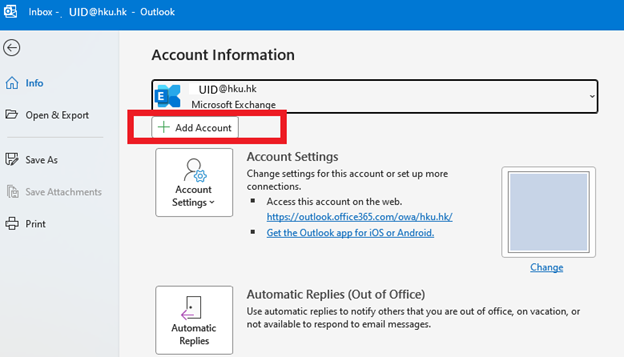
    Type “Control Panel” in search box and then select the best match result “Control Panel” App

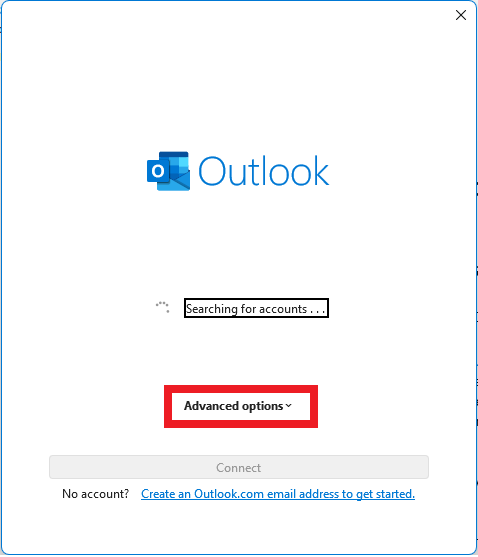
  3. Outlook will search for accounts. Click “Advanced options

    Outlook will search for accounts. Click “Advanced options”
  4. Tick” the box of Let me set up my account manually. Then enter the UID of the mailbox needs to be added in Email address field and then click “Connect” button
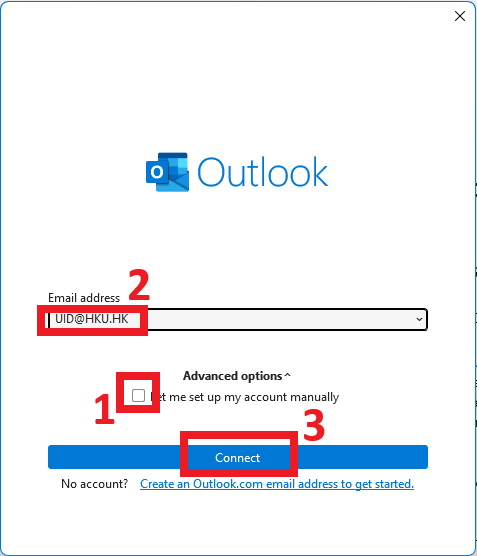
    “Tick” the box of Let me set up my account manually. Then enter the UID of the mailbox needs to be added in Email address field and then click “Connect” button

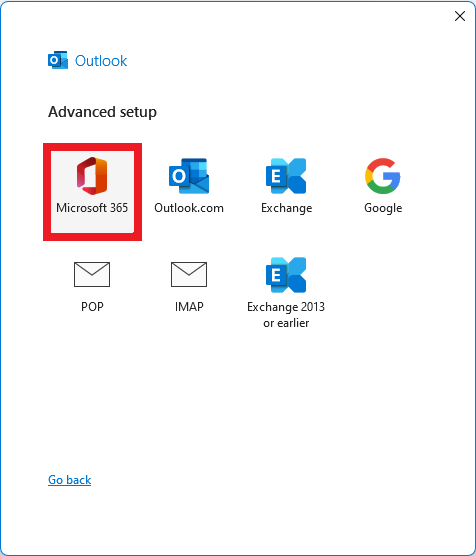
  5. Select and click “Microsoft 365” icon

    Select and click “Microsoft 365” icon

  6. Outlook account configuration in process
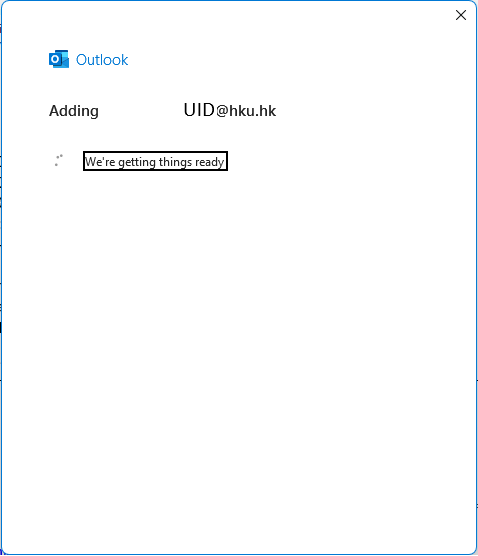
    Outlook account configuration in process

  7. Enter the PIN of the mailbox that needs to be added. Click “Sign in” button
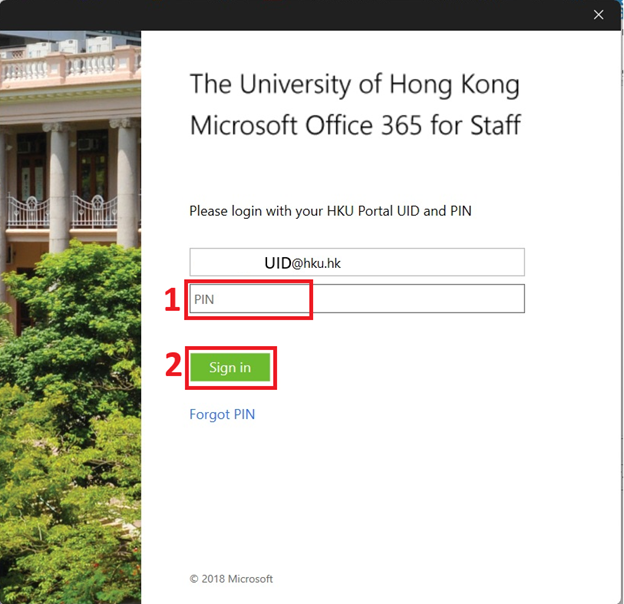
    Enter the PIN of the mailbox that needs to be added. Click “Sign in” button

  8. It will go through MFA to approve sign in request
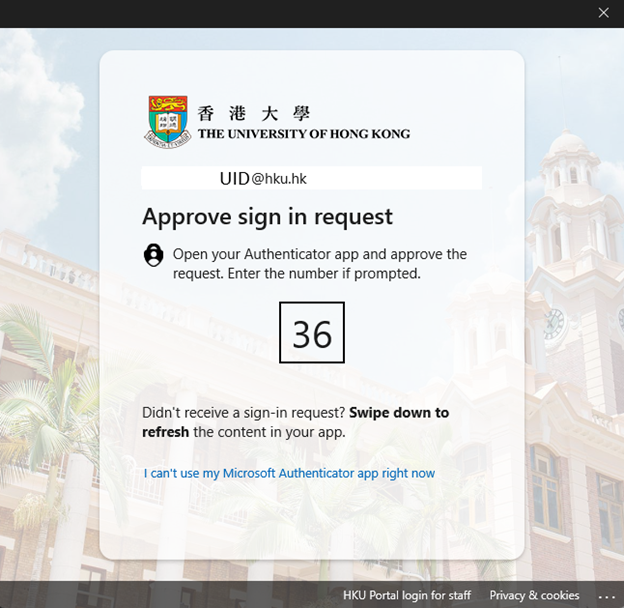
    It will go through MFA to approve sign in request

  9. Enter the number in your Microsoft Authenticator. Click “Yes” button
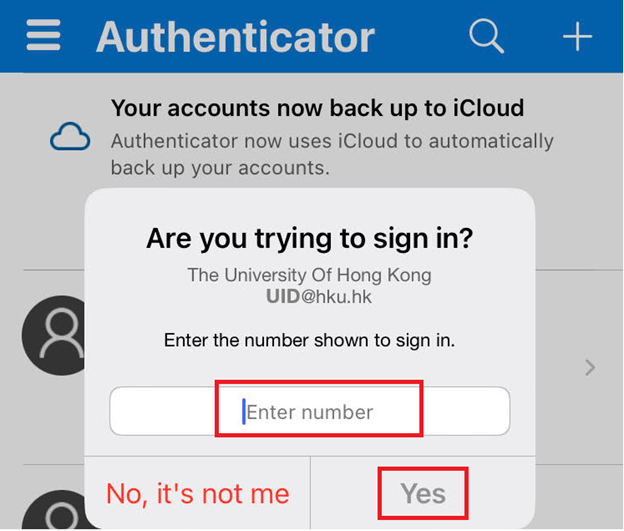
    Enter the number in your Microsoft Authenticator. Click “Yes” button

  10. Click “No, this app only” in this screen. The reason is you only need the additional mailbox to be used on Microsoft 365 Outlook rather than other M365 apps.
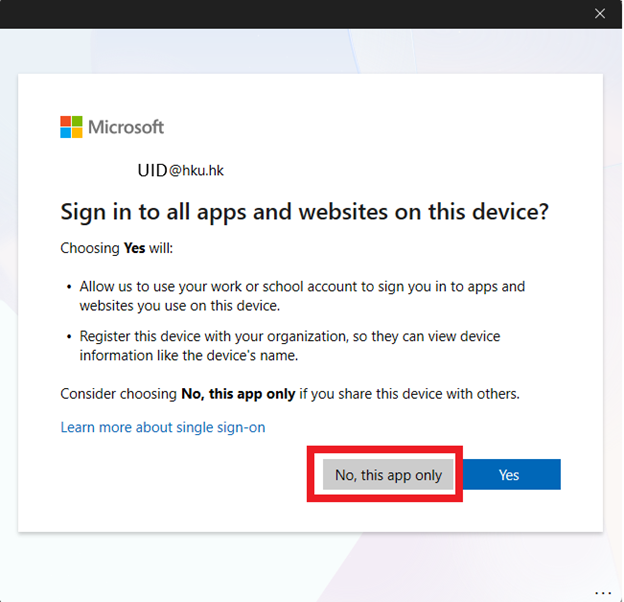
    Click “No, this app only” in this screen. The reason is you only need the additional mailbox to be used on Microsoft 365 Outlook rather than other M365 apps.

  11. Outlook account configuration in process
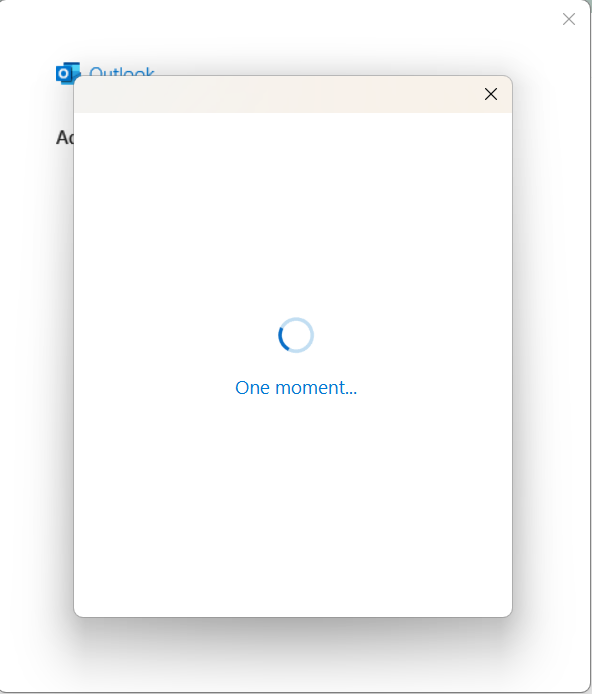
    Outlook account configuration in process

  12. Choose the period to Download email for the past for Outlook offline settings. Click “Next” button
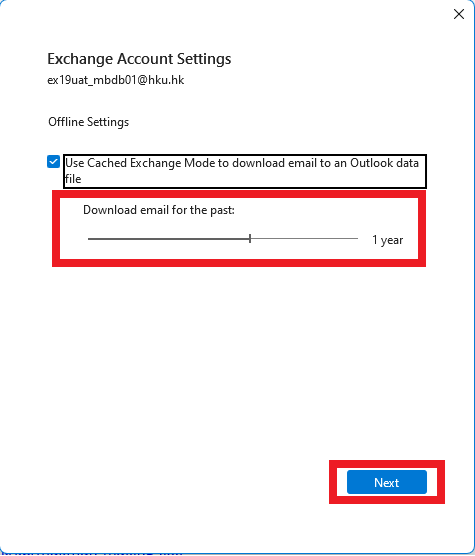
    Choose the period to Download email for the past for Outlook offline settings. Click “Next” button

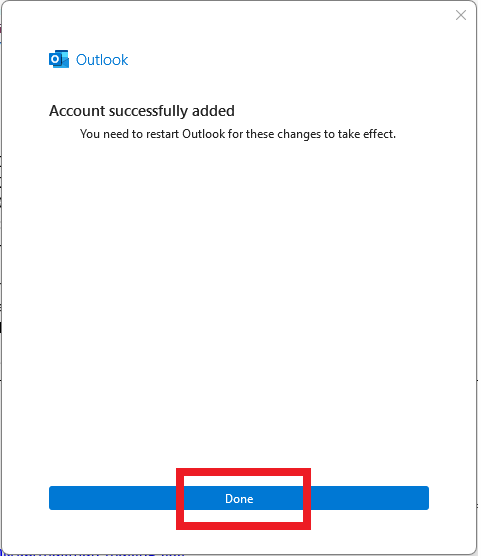
  13. Click “Done” button to finish setup

    Click “Done” button to finish setup

  14. After Outlook restart, the left panel will show the other mailbox being added into your Microsoft 365 Outlook
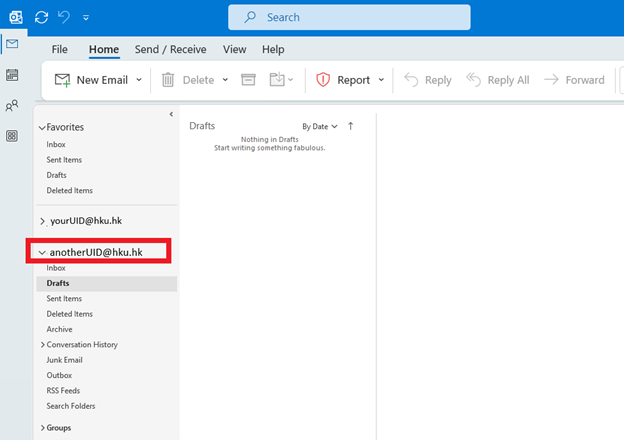

    After Outlook restart, the left panel will show the other mailbox being added into your Microsoft 365 Outlook
0
0