Setup Procedure for Microsoft Outlook client

Pre-requisite: The following procedure is applicable to those using Microsoft Outlook desktop client. Staff and students can refer to below websites:

For Staff: https://its.hku.hk/kb/user-guide-on-office-365-proplus-for-staff/
For Student: https://its.hku.hk/kb/user-guide-for-office-365-proplus/

Graduates can purchase a copy of M365 for using Microsoft Outlook desktop version.

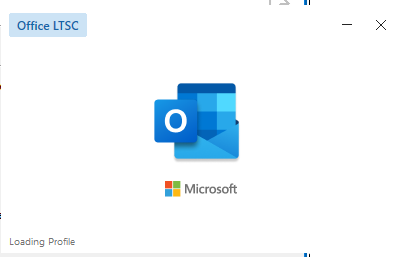
  1. Click “Microsoft Outlook” icon

    Click “Microsoft Outlook” icon

  2. Input Profile Name to create new profile and click “OK” button
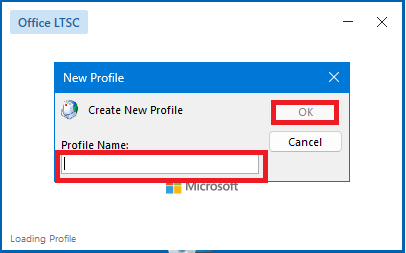
    Input Profile Name to create new profile and click “OK” button

  3. Choose “Manual setup or additional server types” in Add Account dialog box. Click “Next>” button
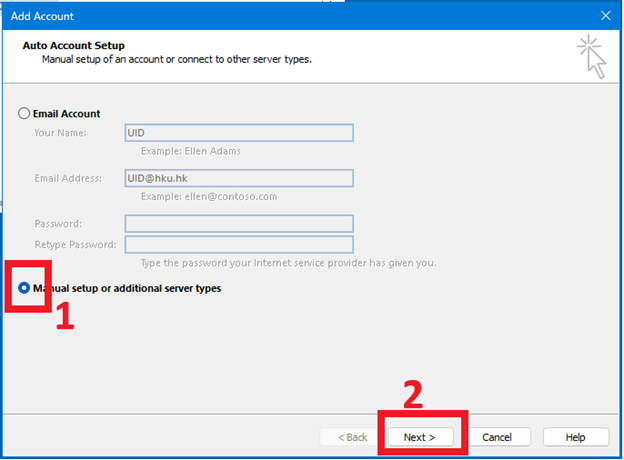
    Choose “Manual setup or additional server types” in Add Account dialog box. Click “Next>” button

  4. Tick” the box of Microsoft 365 button. Then enter your UID@HKU.HK in Email address field and then click “Next>” button
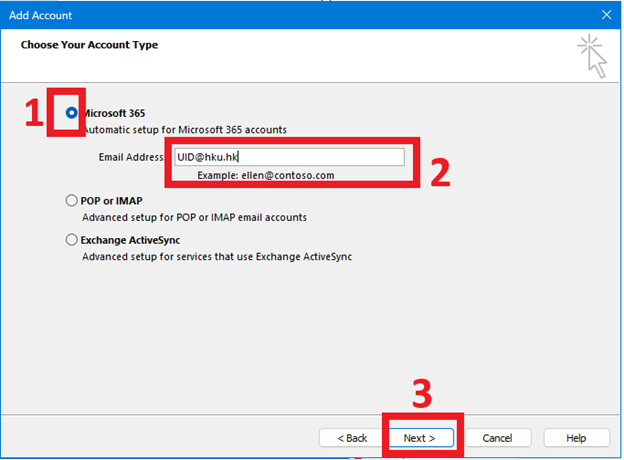
    “Tick” the box of Microsoft 365 button. Then enter your UID@HKU.HK in Email address field and then click “Next>” button

  5. Outlook account configuration in process
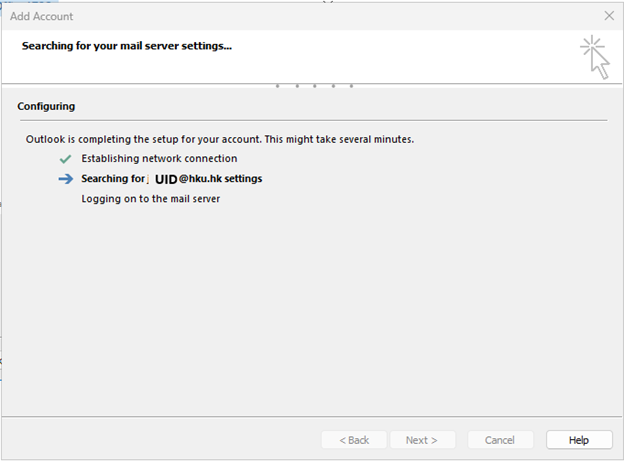
    Outlook account configuration in process

  6. Outlook will prompt to restart. Press “OK” button
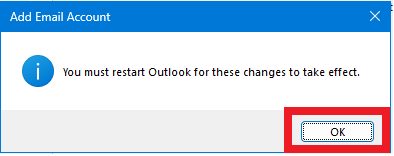
    Outlook will prompt to restart. Press “OK” button

  7. Click “Finish” button to complete setup
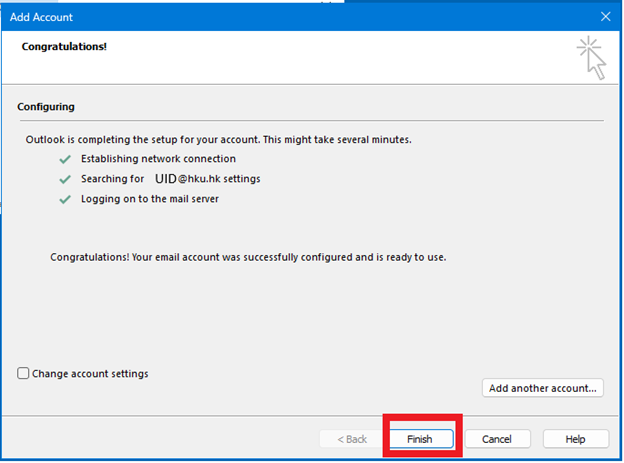
    Click “Finish” button to complete setup

  8. Outlook will process loading profile

    Outlook will process loading profile

  9. Microsoft Outlook client is ready to use. It will connect to Microsoft Exchange Online to synchronize emails
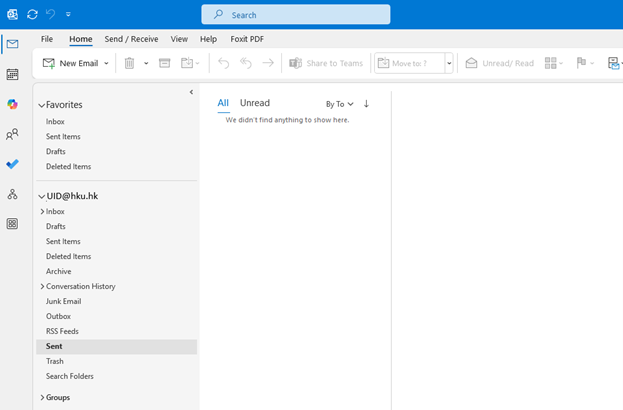

    Microsoft Outlook client is ready to use. It will connect to Microsoft Exchange Online to synchronize emails
0
0