Adding another HKU Exchange Online mailbox in Microsoft Outlook client

  1. In Microsoft Outlook client, click “File” on top
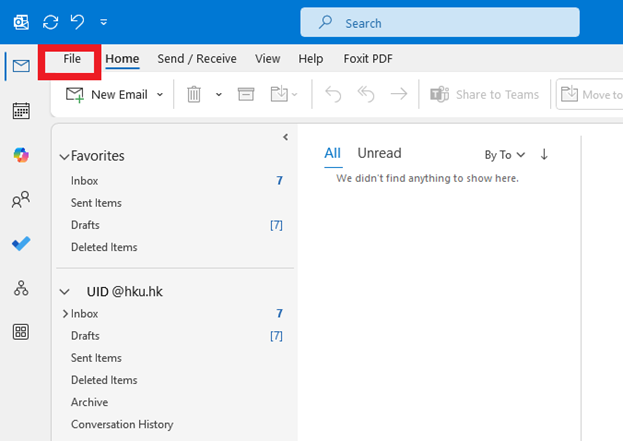
    In Microsoft Outlook client, click “File” on top

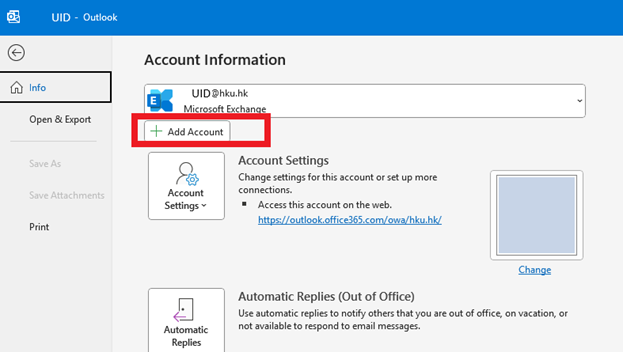
  2. Click “Add Account

    Click “Add Account”

  3. Choose “Manual setup or additional server types” in Add Account dialog box. Click “Next>” button
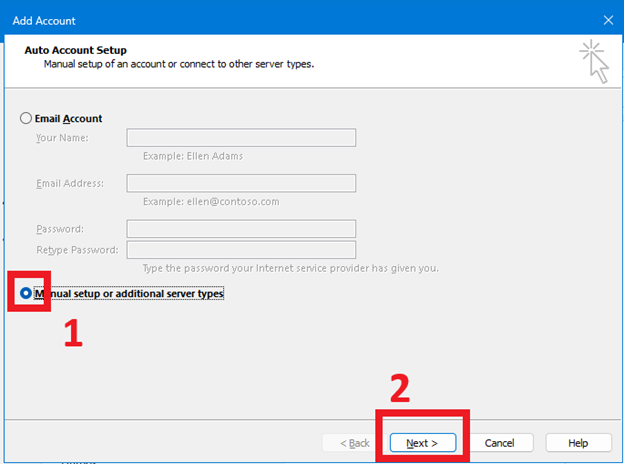
    Choose “Manual setup or additional server types” in Add Account dialog box. Click “Next>” button

  4. Tick” the box of Microsoft 365 button. Then enter the UID of the mailbox needs to be added in Email Address field and then click “Next>” button
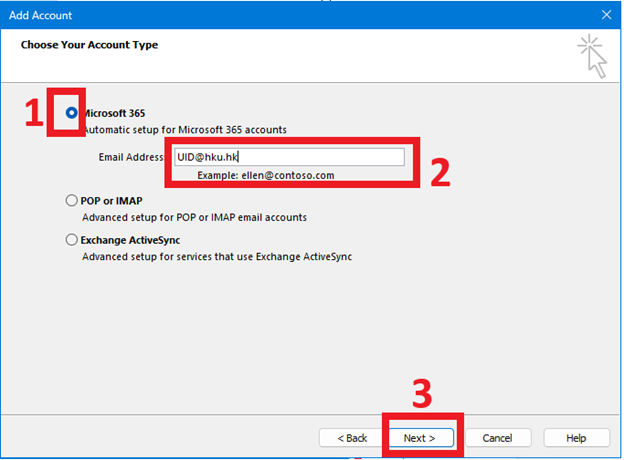
    “Tick” the box of Microsoft 365 button. Then enter the UID of the mailbox needs to be added in Email Address field and then click “Next>” button

  5. Outlook account configuration in process
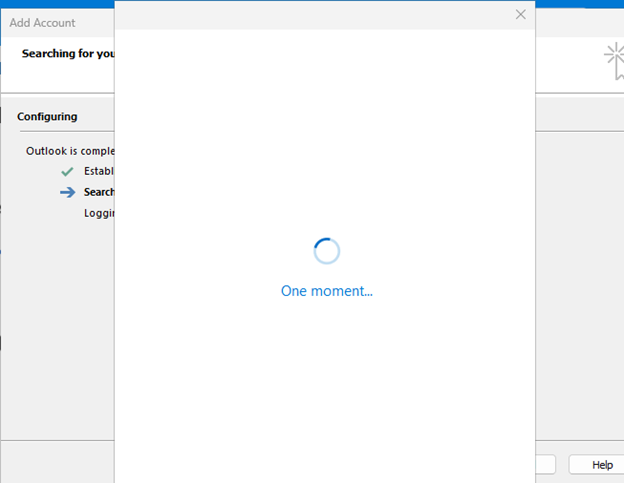
    Outlook account configuration in process

  6. Enter the PIN of the mailbox that needs to be added. Click “Sign in” button.
    * It will go through MFA process if your computer is not in HKU IP address range
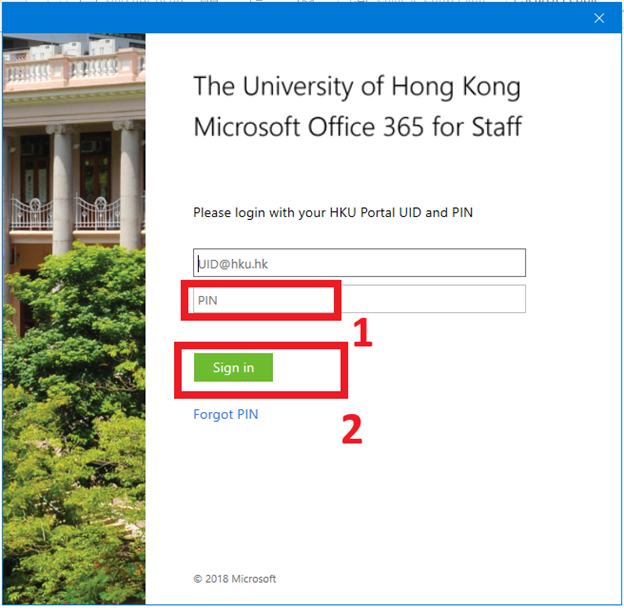
    Enter the PIN of the mailbox that needs to be added. Click “Sign in” button.

  7. Adding another mailbox to Outlook client is completed. Click “Finish” button
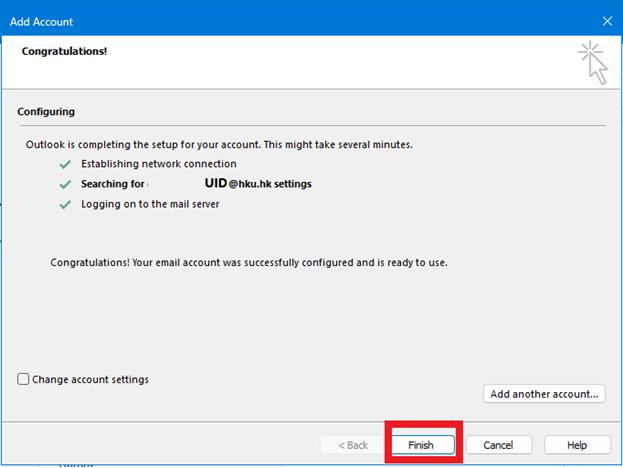
    Adding another mailbox to Outlook client is completed. Click “Finish” button

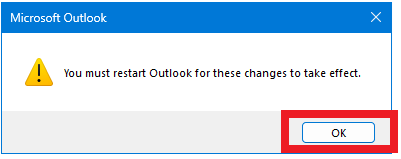
  8. Click “OK” to restart Outlook

    Click “OK” to restart Outlook

  9. After Outlook restart, the left panel will show the other mailbox being added into your Microsoft Outlook client
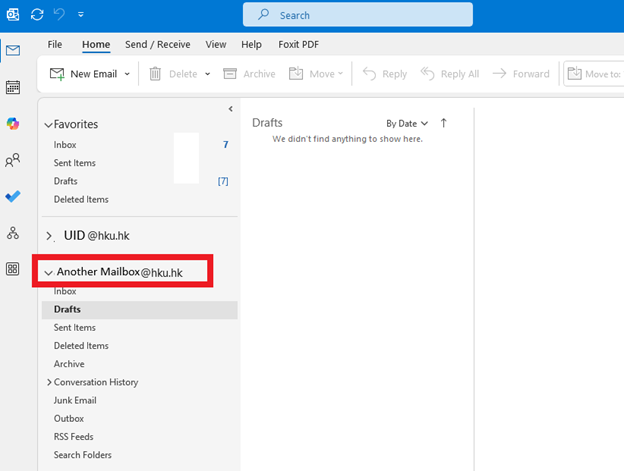

    After Outlook restart, the left panel will show the other mailbox being added into your Microsoft Outlook client
0
0