- Click “Microsoft Outlook” icon
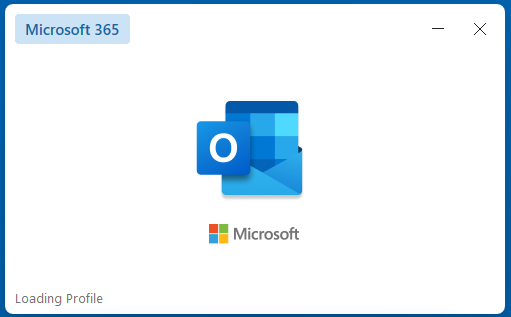
- It will show loading profile of Microsoft 365 Outlook
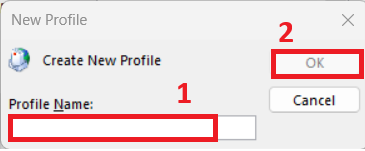
- Input Profile Name to create new profile and click “OK” button
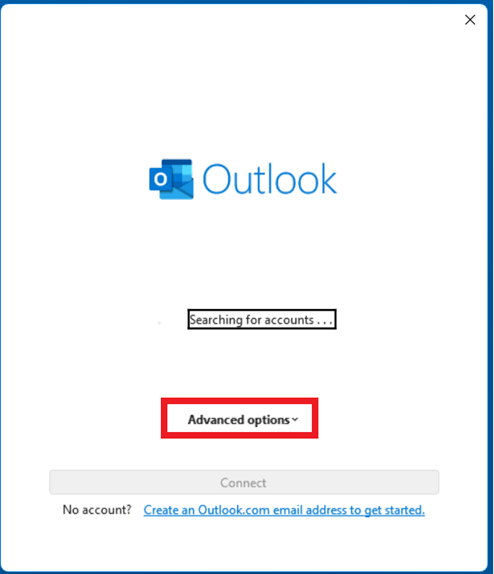
- Click “Advanced options” when Outlook is loading
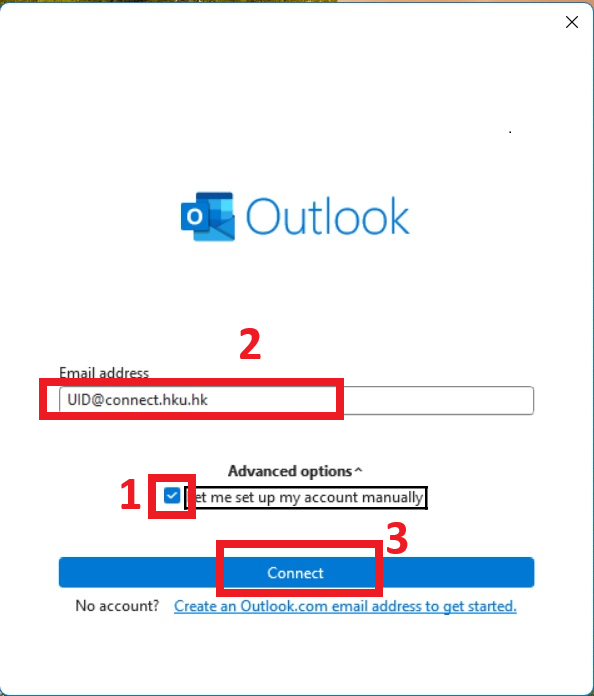
“Tick” the box of Let me set up my account manually. Then enter your UID@CONNECT.HKU.HK in Email address field and then click “Connect” button
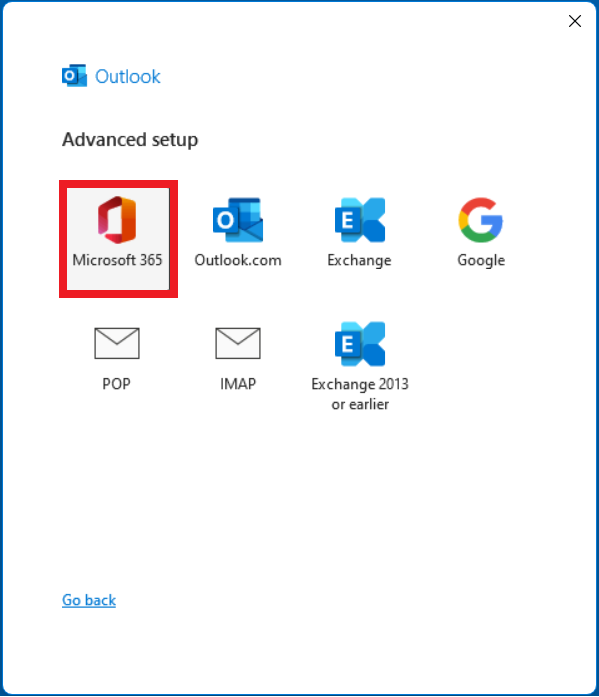
- Select and click “Microsoft 365” icon
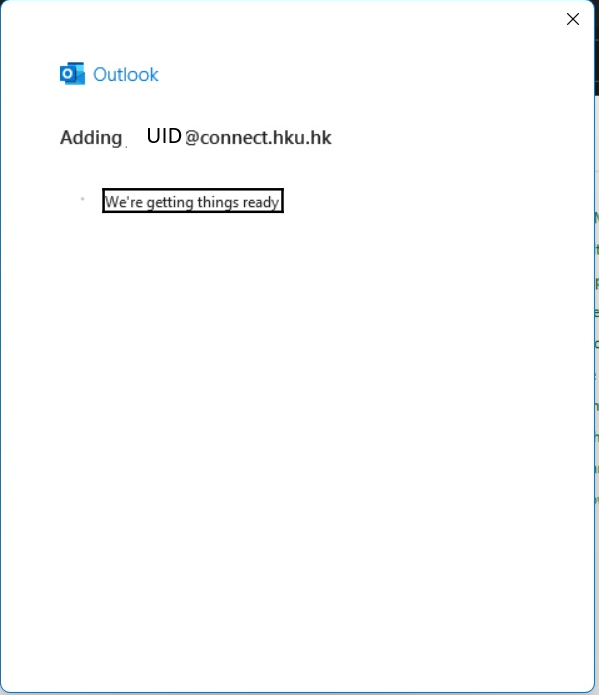
- Outlook account configuration in process
- Enter the PIN of your mailbox. Click “Sign in” button
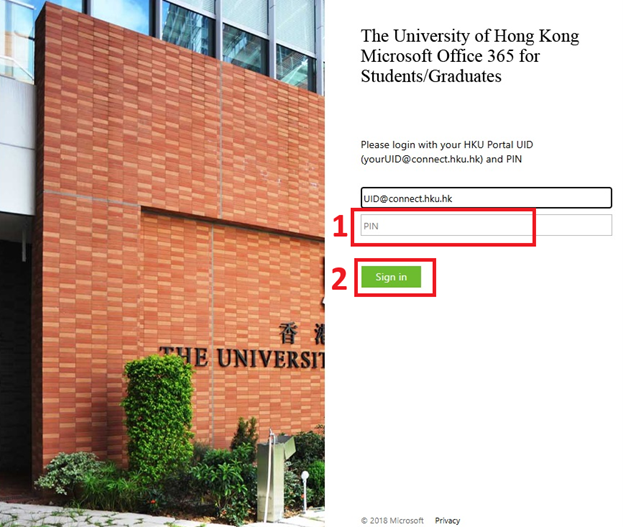
It will go through MFA to approve sign in request
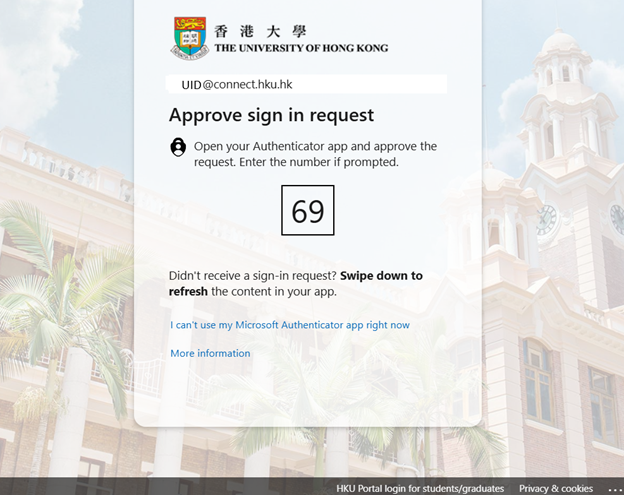
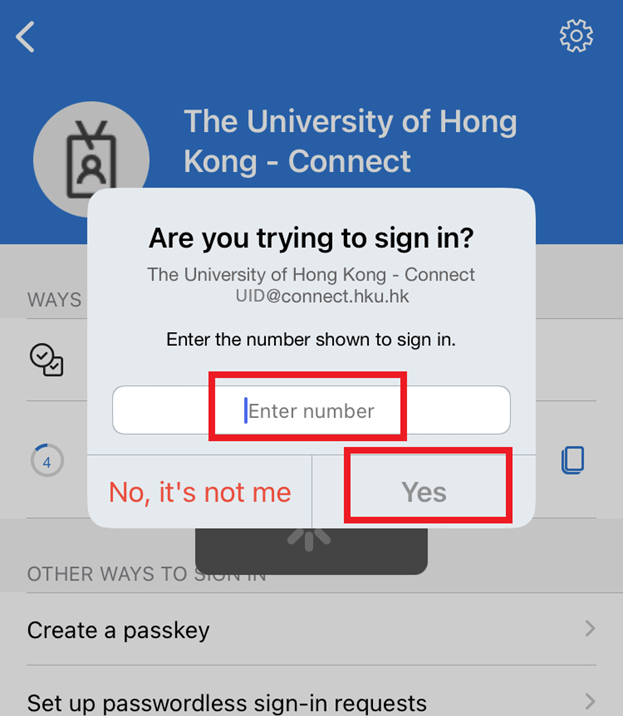
Enter the number in your Microsoft Authenticator. Click “Yes” button
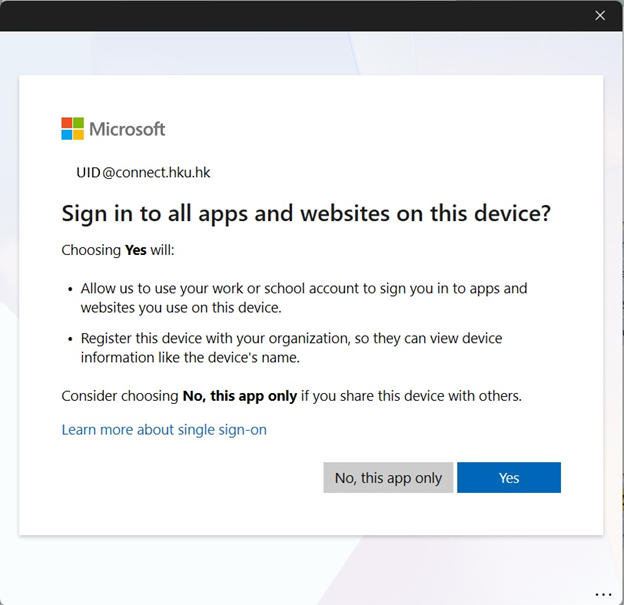
Click “No, this app only” in this screen if only using Microsoft 365 Outlook with HKU Connect account.
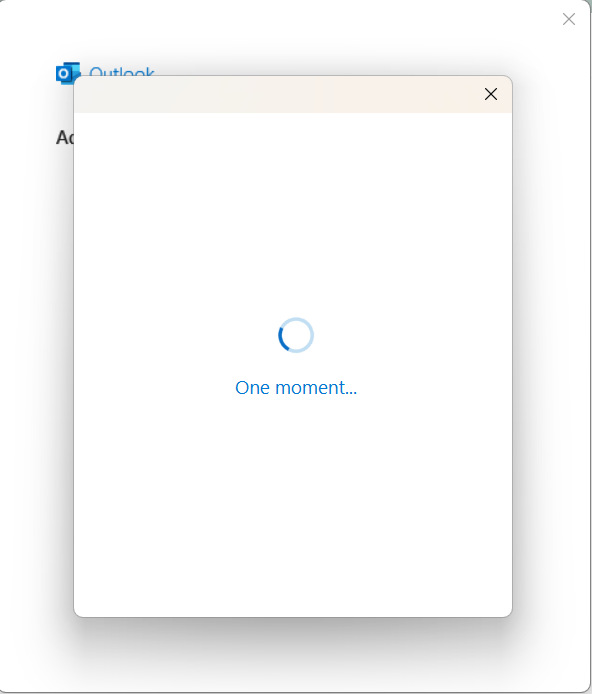
Outlook account configuration in process
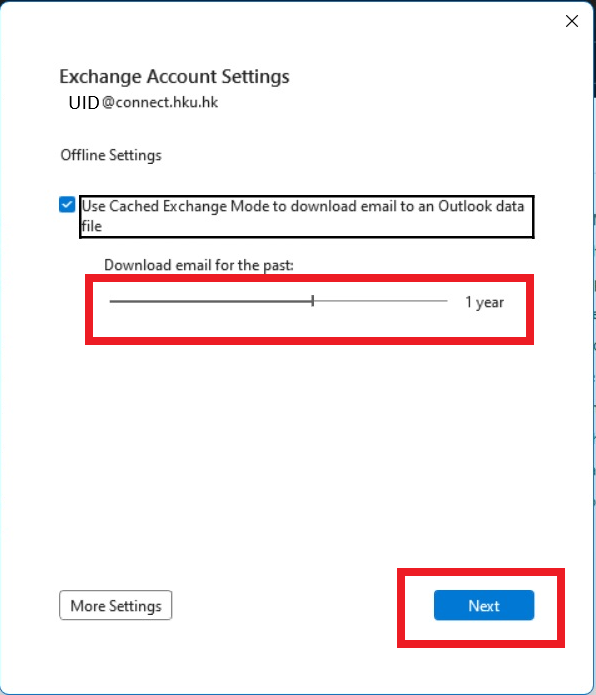
- Choose the period to Download email for the past for Outlook offline settings. Click “Next” button
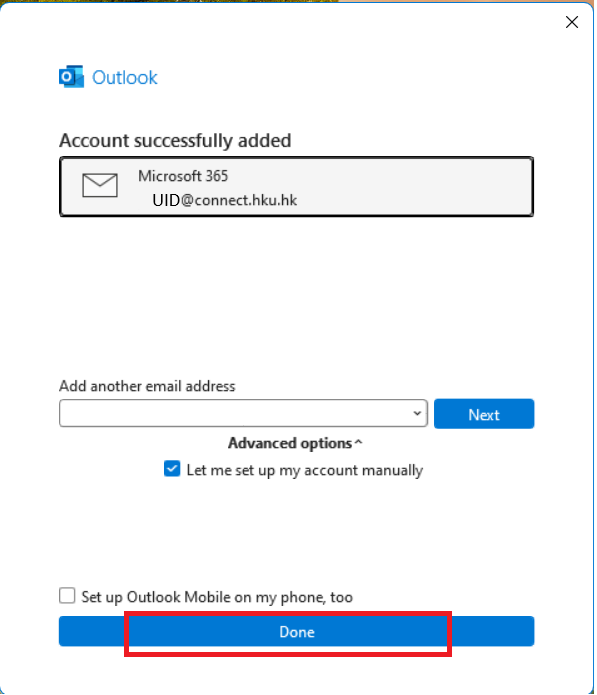
Outlook shows Account successfully added. Then click “done” button
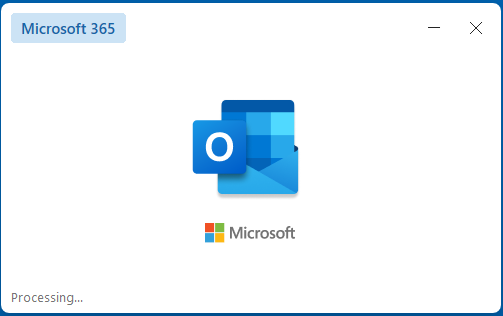
It will start loading “Microsoft 365 Outlook”
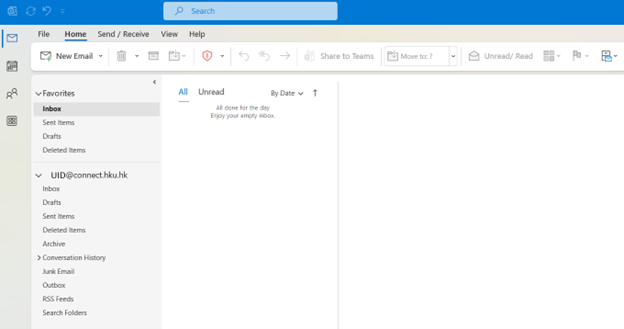
- Microsoft 365 Outlook is ready to use. It will connect to Microsoft Exchange Online to synchronize emails